There’s a moment when an idea lights up a kid’s face—a tiny spark that can turn into a playable game or a simple app. This introduction meets that spark with a practical path: an approach where plain ideas become working projects with AI as a partner.
Vibe Coding for Teens shifts attention away from syntax and toward storytelling, animation, and creative play. Young learners and kids describe what they want; modern tools translate those ideas into code that runs in a browser.
The present landscape makes this possible: Scratch opens visual logic, CodaKid teaches Python and JavaScript, and pro editors like Lovable.dev or Cursor let teens scale to real software. With tools such as Gemini 2.5, a single-line prompt can seed a dinosaur endless runner tested in p5.js and hosted on Firebase.
This short guide maps a simple flow—describe, generate, test, refine, share—so learners build skills, get instant feedback, and collect small wins that boost confidence and practical experience.
Key Takeaways
- This approach keeps kids and teens focused on creativity, not arcane syntax.
- Tools span levels: Scratch for beginners, CodaKid for courses, Lovable.dev/Cursor for advanced work.
- AI-assisted workflows enable fast iteration—from idea to live app with minimal setup.
- Project-first learning sustains motivation through games, art, and small apps.
- Early exposure builds teamwork, feedback habits, confidence, and job-ready skills.
What “Flow” Means for Young Coders: From Idea to Working App
Young learners progress fastest when the path from idea to playable code is short. This section explains a compact, repeatable loop that keeps kids engaged and shipping small wins.
The flow: describe, generate, test, refine, share
Describe: Use plain, natural language prompts to state gameplay or visual intent.
Generate: AI fills in boilerplate and returns runnable code.
Test: Paste into a browser editor like p5.js and play immediately.
Refine: Feed console errors or tweaks back to the assistant; ask for the full updated code.
Share: Publish a hosted demo and compare versions to learn iteration habits.
How AI lowers friction so teens stay in the creative zone
AI reduces routine tasks and hands back a working example fast. Teens focus on intent—controls, art style, and rules—instead of syntax. This preserves momentum and improves learning.
For instance, a one-line Gemini 2.5 prompt like “Make me a captivating endless runner game: p5js scene, no HTML” can return JavaScript ready to test. If the console shows errors, students copy that output to the assistant and request a full corrected file.
“Iteration, not perfection, is the core lesson: errors become prompts for refinement.”
| Stage | What Happens | Immediate Benefit | Action |
|---|---|---|---|
| Describe | Plan with natural language | Clear intent | Write a prompt |
| Generate | AI returns runnable code | Less boilerplate | Copy full file |
| Test & Refine | Run in p5.js and fix via prompts | Fast feedback | Paste, play, repeat |
To explore how this approach supports UX and interface thinking, see the short guide on vibe-coding for UX designers. Embracing this loop builds practical habits: clear prompts, tests that reveal next steps, and documented versions that teach judgement.
Vibe Coding for Teens
A conversational loop lets young creators describe behavior and see real code within minutes.
Talk, don’t type shifts emphasis from memorizing syntax to shaping intent. Students tell an assistant what they want—colors, sprites, or rules—and the system returns runnable JavaScript or Python. This keeps attention on design and logic, not braces and semicolons.
Plain-language prompts to code: talk, don’t type
Describe the outcome: use nouns and verbs—sprite, obstacle, spawn, collect—to make language prompts precise. Clear prompts yield closer first drafts and speed learning.
Platforms with chat agents—Replit’s Agent, Cursor, ChatGPT—let kids iterate conversationally. They tweak a line, test in the browser, and ask the assistant to explain why a change worked. That explanation connects plain language to the underlying code.
Why intent and iteration matter more than syntax
Intent guides results; iteration teaches fundamentals. As kids request features, they naturally encounter variables, loops, and events. The AI scaffolds these concepts rather than forcing rote memorization.
Benefits:
- Inclusive entry: kids start with ideas, not error messages.
- Immediate feedback: changes appear quickly, boosting confidence.
- Transferable skill: writing precise prompts improves problem framing.
“Iteration, not perfection, is the core lesson: errors become prompts for refinement.”
To see classroom cases and guidance, consult this short note on vibe coding for students—it shows how conversational tools make coding tools accessible and engaging for kids learning by doing.
Why Teens Love It: Creativity, Confidence, and Collaboration
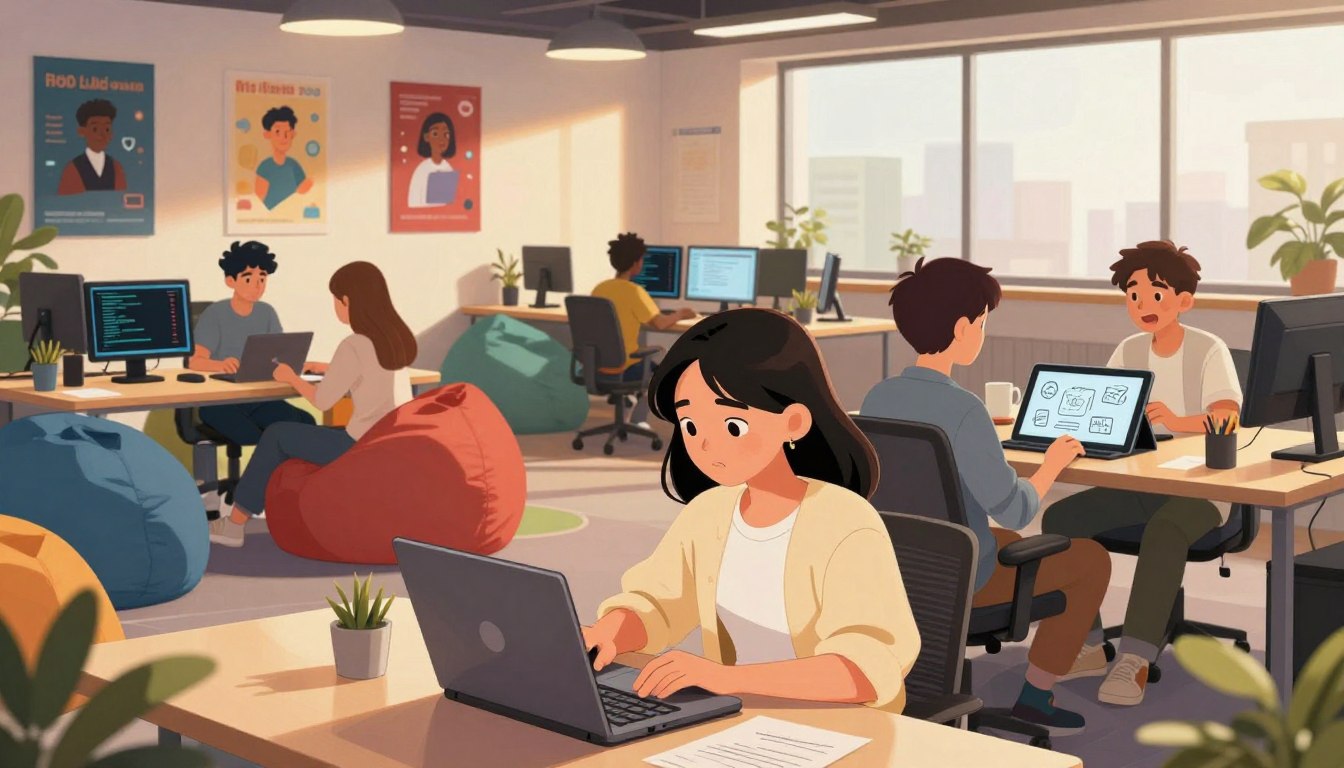
Immediate results—seeing a sprite move or a score rise—hook many young creators. When AI handles syntax, teens spend energy on art, rules, and story. That shift makes coding feel like design work instead of a chore.
Fast trials build confidence. Press play, watch the game, then tweak. Quick feedback turns mistakes into data and teaches resilience.
Collaboration becomes easier: one user shapes visuals while another refines physics. Shared prompts and editable code let teams divide tasks and ship small projects together.
Small wins matter. A jumping character or a working score counter creates momentum and invites bigger goals. Over time teens develop practical skills employers value: translating intent into working code through iteration.
“Iteration, not perfection, is the core lesson: errors become prompts for refinement.”
- Creative freedom: more imagination, less boilerplate.
- Instant feedback: faster learning cycles and stronger confidence.
- Inclusive teamwork: varied roles let kids contribute meaningfully.
The Essential Toolstack to Get Started
Choosing the right mix of platforms shortens setup time and keeps learners focused on building. This section maps a compact stack that scales from visual logic to professional editors.
Beginner-friendly options
Scratch is free and ideal for kids ages 8–12. Its drag-and-drop interface teaches events, loops, and conditionals with instant feedback. Young creators internalize logic before moving to text-based code.
Project-based real languages
CodaKid offers structured courses and projects. Self-paced plans run about $29/month and unlock 85+ courses (Python, JavaScript, AI, Roblox). Private lessons and camps add mentorship for deeper learning and skills development.
Pro editors and in-browser play
Lovable.dev and Cursor bring advanced AI-assisted editing when learners are ready to scale. Replit removes setup friction with an in-browser IDE and assistants for rapid iteration. GitHub Copilot helps suggest code in VS Code as projects grow.
| Stage | Recommended Tool | Best Use |
|---|---|---|
| Foundations | Scratch | Visual logic and instant feedback for kids |
| Structured learning | CodaKid | Project courses and mentorship ($29–$249/mo) |
| Scale & polish | Lovable.dev / Cursor / Replit | AI-assisted editing, rapid prototyping, sharing |
| Professional workflow | GitHub Copilot + VS Code | Editor suggestions and larger codebases |
Practical tip:Combine tools—start with Scratch, move to CodaKid projects, then graduate to pro editors—so the learning path preserves momentum and real-world development experience.
Set Up Your First Coding Environment
Getting the first environment running should prioritize speed and clarity over configuration noise. Start in a browser to keep friction low and keep learners focused on results.
Web-only route: browser + Gemini UI + p5.js editor
Open gemini.google.com and pick a code-capable model. Choose Gemini 2.5 Flash for quick iteration or 2.5 Pro when you want stronger output.
Ask the model for a small sketch, then paste the JavaScript into sketch.js at the p5.js editor. Play, tweak, and repeat—no installs required.
Optional local setup: VS Code, npm/npx, git, and folders
When persistence matters, move local. Install VS Code, Node (v18+ for Firebase CLI), and set up a git account.
Create a clear folder structure: public/index.html, sketch.js, style.css. Run basic commands—npm install, git add/commit/push—to learn versioning and avoid accidental overwrites.
- Rule: match the environment to learners’ comfort—start online, graduate to local tools.
- Tip: follow step-by-step instructions to reduce errors and speed iteration time.
Hands-On: Vibe-Code a Game from a One-Line Prompt
Begin with a tight description—style, inputs, constraints—and let the model return code. This practical section walks the reader through a single, repeatable loop that turns a one-line brief into a playable runner in p5.js.
Prompting with Gemini 2.5: endless runner example
Use this prompt in Gemini 2.5: “Make me a captivating endless runner game: p5js scene, no HTML”. Add style notes (pixelated dinosaurs, cyberpunk), controls (spacebar jump), and limits (no external assets).
Testing on p5.js: paste, play, and iterate
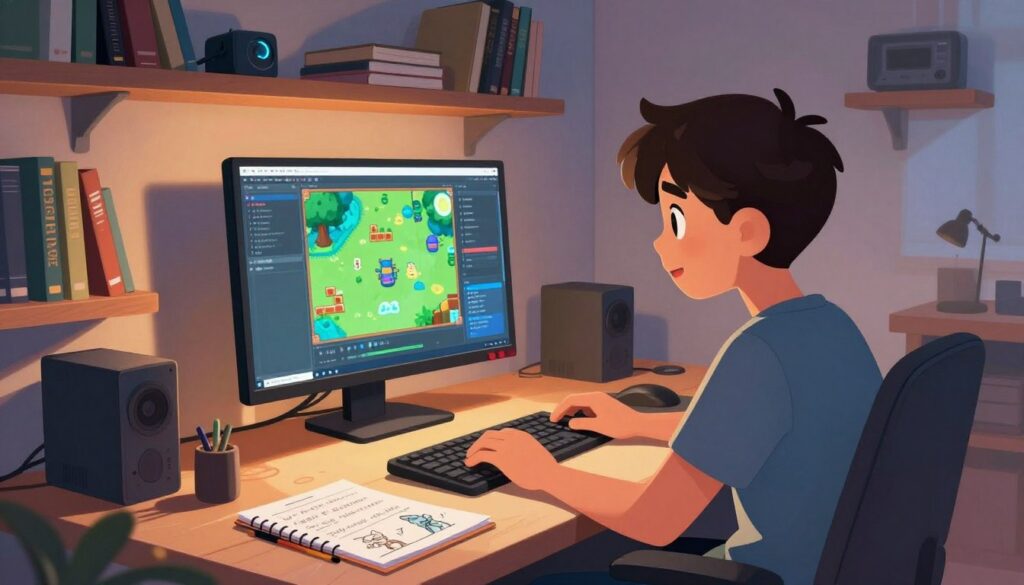
Copy the returned JavaScript into the p5.js editor. Press the Play button and watch the game appear. If it runs, ask the assistant for a new feature—double jump or increasing speed—and request the entire updated file so pasting stays simple.
When errors happen: copy console output back to the AI
If the editor shows a console error, copy the exact output into the same Gemini chat. This tight feedback loop fixes problems faster and teaches debugging.
- One clear step: brief, paste, play.
- Document each change in a simple changelog so the example evolution is visible.
- When stable, migrate to local files and git to preserve working versions and prepare hosting.
Ship It: Host Your Teen’s First App on Firebase
Ready-to-share hosting turns a working sketch into a moment everyone can open in a browser. The final step is simple: prepare files, initialize Firebase, test locally, then deploy a public URL.
Initialize Firebase Hosting and keep the p5.js index intact
Install the Firebase CLI via npm and confirm Node v18+ is installed. Authenticate with your Google account, then run firebase init.
In the wizard select Hosting, set the public directory to public/, and decline single-page rewrites. When asked about overwriting, choose do not overwrite to preserve your p5.js index.html, sketch.js, and style.css.
Local emulator for quick feedback, then deploy to web.app
Start the emulator with firebase emulators:start and open http://127.0.0.1:5000/ to preview. Iterate until the app is working and lightweight.
- Deploy with
firebase deployto get https://YOUR_PROJECT.web.app. - If a blank page appears, open DevTools, copy the console error and paste it back to your assistant for a targeted fix.
Tip: Budget a little extra time to check mobile input, asset paths, and keyboardless controls so the shared app delivers the intended moment.
Prompt Craft for Teens: Make AI Your Coding Teammate
A well-structured prompt reduces back-and-forth and speeds a project from sketch to runnable code. Treat the prompt as a short spec that lists genre, controls, art style, device targets, and hard constraints (for example: p5.js, no HTML). Clear specs help the assistant return focused, testable output.
Structure, constraints, and examples in your prompt
Begin with a one-line summary and follow with bullet items: inputs, visuals, and limits. Add accessibility notes like “tap-friendly controls for mobile.”
Ask for the entire updated code for easier pasting
Always request the full updated code. That avoids partial snippets and reduces merge confusion when pasting into p5.js or an editor.
Version prompts and code with git to learn from iterations
Keep a PROMPT.md that records prompt versions and rationale. Commit code and PROMPT.md in git so kids can revert or branch when an idea diverges.
- Assign the AI small tasks—e.g., “increase obstacle difficulty over time”—and review the change like a teammate’s PR.
- When errors appear, capture the console text or a screenshot and paste it back to the assistant for targeted fixes.
- Decide whether to iterate code or rewrite the prompt; both teach valuable process and ability to judge next steps.
“Treat prompts as specifications—clarity speeds convergence and teaches control over ideas.”
Project Ideas That Match Teen Interests
Match project goals to a teen’s passions to keep momentum and make learning stick.
Games: platformers, runners, and maze challenges
Platformers, endless runners, and maze puzzles teach physics, collision, and level design. Start with a minimal playable loop and add one feature at a time—score multipliers, parallax backgrounds, or enemy waves.
Creative tech: digital art, animations, and music apps
Digital canvases, particle systems, and generative music apps let students explore aesthetics and rhythm while learning code. Use natural language to set constraints—pixel art, tap-only controls, or a limited palette—and let AI scaffold the first build.
Web and apps: quiz tools, dashboards, and mini-sites
Quizzes and lightweight dashboards teach structure and content design. Host a mini-site to showcase projects. Beginners can prototype in Scratch, then replicate the idea in text-based editors for depth. For guided courses, consider CodaKid courses.
| Project Type | Core Skill | Starter Enhancement |
|---|---|---|
| Platformer | Physics & input | Double jump / parallax |
| Generative art | Math & visuals | Color palettes / export PNG |
| Quiz app | State & data | Scoring & shareable link |
Guidance for Parents and Teachers in the United States
Parents and teachers can shape learning by breaking sessions into short, focused bursts that reward progress. This approach fits school schedules and family routines. Short sessions (15–20 minutes) lower frustration and keep momentum.
Short sessions, small wins, and group showcases
Plan concise goals: add one feature per step so each meeting finishes with a visible result. Small wins build confidence and reduce overwhelm.
Celebrate publicly: quick group showcases or a shared class page motivate kids and teach presentation skills. Public sharing makes learning social and meaningful.
Pair programming and role rotation to build soft skills
Use pair programming with driver/navigator rotation. That structure teaches communication, empathy, and teamwork. Switch roles every 15–20 minutes to keep engagement high.
- Match the tool to the learner: Scratch for younger kids; structured courses like CodaKid as skills grow.
- Encourage reflective practice: ask what worked, what failed, and the next step.
- Keep setups simple: browser-based editors at home; basic computer stations and shared repos in class.
- Make it fun: themed sprints and friendly challenges keep time focused and joyful.
“A step today, a demo tomorrow”—this cadence sustains steady learning and supports transferable skills.
For practical design tips and tool guidance, consult this short note on vibe coding design principles. It helps adults pick the right mix of tools and steps to support kids as they develop code skills.
Debugging, Safety, and Responsible AI Use
Debugging is a practical habit—one that turns confusing console text into clear next steps. Teach kids to read an error: identify the file, the line number, and the exact message. Copy that text into the AI chat so fixes are precise and fast.
Reading errors, testing on desktop and mobile, and refining inputs
Test on both desktop and mobile. Some games need a keyboard; add on-screen buttons or touch handlers when keyboards aren’t present. After each change, run a quick sanity test to confirm the app is working.
Supervision, attribution, and avoiding production use of raw AI code
Keep adults in the loop for supervision and attribution of AI assistance. AI-generated code is non-deterministic—do not deploy raw outputs to production without review. Use Node v18+ and stable tooling for hosting; accept Firebase Terms before deploy.
- Comment intent: add clear instructions in code comments so future maintainers know what changed and why.
- Privacy: avoid collecting real user data; prefer local prototypes and minimal storage.
- Process: iterate inputs, validate outputs, document findings—this builds responsible engineering habits.
“Errors are signals—read them, reproduce them, then ask the assistant for a targeted fix.”
From First App to Future-Ready Skills
Combining automated help with hands-on fundamentals turns short experiments into lasting ability. This approach trains judgment: when to accept AI output, and when to trace logic in the code.
Blending AI assistance with core programming fundamentals
Use AI to accelerate repetition—let it generate boilerplate so learners focus on structure, data, and performance. At the same time, practice writing small functions and reading stack traces to keep fundamentals sharp.
Balance matters: alternate assisted sessions with manual exercises. This builds problem decomposition and debugging discipline that employers value in software development roles.
Building a portfolio: hosting, sharing, and reflecting on learnings
Create a public folder for each project. Host working demos on Firebase and keep a PROMPT.md alongside git commits to show evolution from idea to polished project.
- Summarize each project: intent, approach, iterations, outcomes.
- Show metrics: fps stability, input responsiveness, and user notes.
- Demonstrate process: include readable code, prompt history, and short tests.
“A live demo plus a clear changelog signals both creativity and dependable engineering.”
For a practical primer on this approach, see the short vibe coding guide that maps projects into learning pathways for kids and early developers.
Conclusion
Practical practice—one prompt, one fix, one share—builds durable ability. This approach turns small ideas into a live demo and a teachable moment.
Use Gemini 2.5 to seed a playable game, test rapidly in p5.js, and publish with Firebase. Start with Scratch or CodaKid, then graduate to Replit, Cursor, Lovable.dev, and Copilot as skills grow.
Kids and teens gain confidence through repeatable loops that blend creativity and fundamentals. The result is practical skills: clear prompts, readable code, and steady progress over time.
Keep work responsible—test across devices, credit AI help, and avoid deploying raw outputs without review. To explore a supportive entry point, try this free coding class for kids.
FAQ
How can young coders start their journey with flow?
Begin with a small, clear project idea—like a simple game or interactive art piece. Use a browser-based editor (for example p5.js or Replit) so they can see instant results. Guide them through a short loop: describe the idea, generate a prototype, test it, refine features, and share the result. Keep sessions brief and focused to protect momentum and confidence.
What does "flow" mean for young coders: from idea to working app?
Flow is a smooth cycle: describe the goal in plain language, generate runnable code, test the output, refine based on feedback, and share the finished app. The aim is to minimize friction so the learner stays in a creative zone—less setup, more making.
What are the core steps in the flow: describe, generate, test, refine, share?
Start by writing a one- or two-line description of the idea. Use an AI assistant or template to generate starter code. Run the code in an in-browser playground and note errors or desired changes. Iterate: adjust intent, tweak parameters, retest. Finally, host the project (for instance on Firebase or GitHub Pages) and ask for peer feedback.
How does AI lower friction so teens stay in the creative zone?
AI speeds up scaffolding—boilerplate code, examples, and debugging hints—so teens spend time designing and testing rather than wrestling with setup or syntax. It also offers instant suggestions and alternatives, which encourages experimentation and quicker learning cycles.
How do plain-language prompts let teens code without heavy typing?
Plain-language prompts let learners describe intent instead of memorizing syntax. An assistant (like Gemini or GitHub Copilot) converts those prompts into working code. This approach emphasizes problem-solving and iteration over rote typing, speeding progress and keeping tasks accessible.
Why do intent and iteration matter more than perfect syntax?
Clear intent guides meaningful results; iteration refines them. Teens learn faster when they test ideas quickly and fix issues through repeated cycles. Syntax errors are teachable moments—important, but secondary to building useful features and understanding program flow.
Which tools form the essential starter toolstack?
Begin with Scratch or a visual block editor for logic basics, move to project-based lessons with CodaKid for structured learning, and graduate to pro editors such as Cursor or Lovable.dev when ready to scale. Use Replit for in-browser coding with AI assistants and GitHub Copilot for advanced pair-programming support.
Why start with Scratch for beginners?
Scratch provides instant visual feedback and low cognitive load for logic and sequencing. It builds confidence and helps learners understand core concepts—loops, conditionals, events—before they encounter textual syntax.
How do project-based formats help when transitioning to real languages?
Project-based plans from providers like CodaKid present small, relevant goals tied to concrete outcomes. That structure teaches practical patterns, file organization, and language features while keeping motivation high through visible results.
What are pro editors teens should consider later?
Cursor and Lovable.dev offer richer tooling, integrated AI, and collaboration features. They suit learners ready for larger projects, version control, and a professional editor experience.
How to set up a web-only first coding environment?
Use a modern browser plus a UI like Gemini and an online p5.js editor. This removes installation barriers—students can paste code, run sketches, and iterate immediately without local setup.
What does an optional local setup look like?
For more advanced work, install Visual Studio Code, Node.js (npm/npx), and Git. Create a project folder, initialize git, and use package scripts for build or serve tasks. This prepares teens for real-world workflows.
How can teens build a simple game from a one-line prompt?
Provide a concise prompt (for example: “Make an endless runner with obstacles and score”). Ask an AI model like Gemini 2.5 for starter code. Paste that code into p5.js, run it, note issues, and iterate—changing mechanics, adding art, and tuning difficulty.
How should teens test game code on p5.js?
Copy the full sketch into the p5.js web editor and press Run. Observe behavior, log values to the console, and tweak variables. Small, frequent tests speed debugging and foster creative exploration.
What should be done when errors happen?
Copy console output and the failing code into the AI assistant, describe the expected behavior, and ask for targeted fixes. This turns error messages into learning opportunities and helps maintain flow.
How do you host a teen’s first app on Firebase?
Initialize Firebase Hosting in the project folder, keep the p5.js index.html and assets intact, test locally with the Firebase emulator for fast feedback, then run firebase deploy to publish to a web.app domain.
What local emulator strategy speeds iteration before deploy?
Use the Firebase local emulator or a simple static server (npm serve) to view changes instantly. Emulators replicate hosting behavior and avoid repeated full deploys during development.
How should teens craft prompts to make AI an effective coding teammate?
Structure prompts with goal, constraints, and examples. Request full updated files for easy pasting. Ask for unit-like test cases or expected console outputs to validate behavior. Keep prompts concise and explicit about the platform or editor.
Why ask AI for the entire updated code?
Receiving a complete file simplifies swapping code into editors without piecemeal merges. It reduces manual errors and makes iteration faster—essential for maintaining momentum.
How does versioning prompts and code with git aid learning?
Using git records iterations and decisions. Teens can compare commits to see how prompts changed code, learn from regressions, and build a history of their creative process.
What project ideas match teen interests?
Games like platformers and maze challenges, creative tech such as digital art and music apps, and web projects like quizzes, dashboards, or mini-sites. Choose topics that align with personal hobbies to boost engagement.
How can parents and teachers support beginners in the United States?
Keep sessions short, celebrate small wins, and organize group showcases. Encourage pair programming and role rotation so learners practice collaboration and communication alongside technical skills.
What debugging, safety, and responsible AI practices should be taught?
Teach reading error messages, testing on both desktop and mobile, and refining prompts. Reinforce supervision, proper attribution for AI-generated code, and avoiding direct production use of raw AI outputs without review.
How do teens progress from a first app to future-ready skills?
Combine AI assistance with fundamental programming lessons—data structures, algorithms, and design patterns. Build a portfolio: host projects, document decisions, and reflect on what changed between versions.