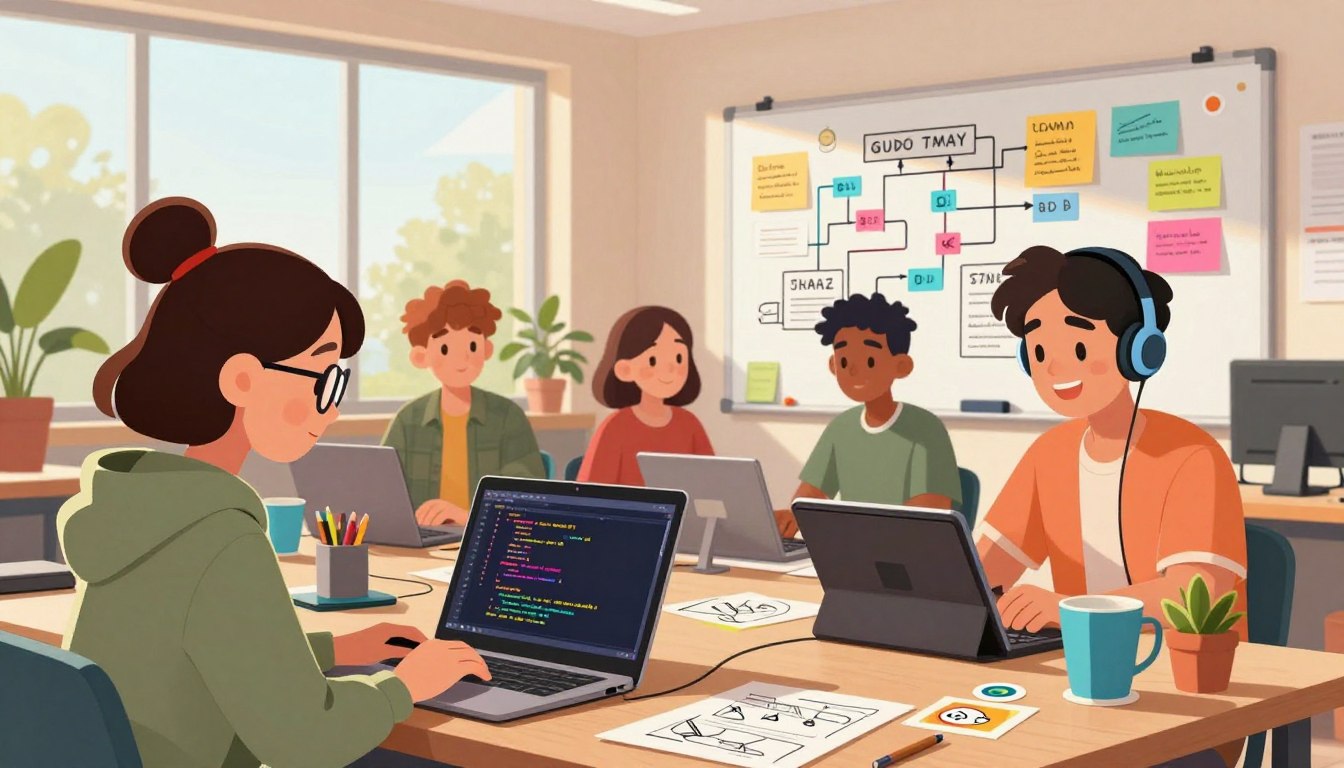
There is a moment when a child’s idea becomes a playable game. That first click, sprite, or sound can light a lasting spark.
The guide frames how kids and teens pair creativity with smart tools. It shows how AI partners let learners describe ideas and get working code—so they focus on design, fun, and problem solving rather than syntax.
Real tools matter: Scratch and CodaKid scale from block play to self-paced lessons. Advanced teens can move to Lovable.dev or Cursor.com and try Gemini 2.5 with p5.js to generate a playable game from one prompt.
The approach keeps core logic and debugging in view. It also teaches where to host projects—Firebase via the Firebase CLI—so early wins are shareable and motivating.
Key Takeaways
- AI-assisted learning reduces syntax friction and boosts creative play.
- Scratch is ideal for ages 8–12; CodaKid adds structured courses and camps.
- Advanced learners can use Gemini 2.5 + p5.js, then host on Firebase.
- Teaching quick feedback loops and teamwork keeps momentum high.
- Parents and mentors can choose block-first or jump to text + AI based on readiness.
What Is Vibe Coding and Why It Clicks for Young Learners
A simple sentence—typed or spoken—can turn into running software that teaches as it runs. This method uses a natural language interface where an AI assistant translates intent into working code learners can run, inspect, and tweak.
From natural language to working code: the core idea
Vibe coding lets young learners describe a scene or task in plain language and receive a runnable sketch. The system handles boilerplate and repetitive tasks so kids stay focused on design, play, and problem solving.
How this approach differs from traditional coding
Traditional coding expects manual syntax work, careful debugging, and memorization of language details. The conversational path lowers that entry barrier without skipping fundamentals: students still learn algorithms, state, and events by iterating on AI drafts.
“Instant feedback and visible results make the learning loop short, motivating, and fun.”
For a practical start, see an example arc—ask for a simple drawing app, get a runnable sketch, then refine colors and scoring with follow-up prompts. Tools like ChatGPT, Gemini, and Cursor make that loop accessible; platforms such as Scratch and Code.org introduce the same concepts to younger kids.
Learn more about this process and the benefits vibe coding brings to young learners: confidence, teamwork, and faster mastery of core coding concepts.
Vibe Coding for Teens: The Fast-Track Path to Creative Projects
Teens can turn a weekend idea into a working playtest in less than an hour. A short, focused session creates visible results and keeps momentum high.
Instant feedback that builds momentum
Start small: pick something like an endless runner or a music visualizer and ask the AI for a minimal playable demo. Run it in p5.js and tweak a value — the change is immediate.
Language prompts move a project forward: first a character, then scoring, then level difficulty. Each milestone teaches state, events, and simple logic while preserving creative control.
Short, time-boxed sessions (15–30 minutes) compound progress without burnout. Keep a project journal that logs prompts, what worked, and next steps; this captures lessons and accelerates future builds.
“Instant feedback fuels iteration — small wins lead to larger experiments.”
Practical outcome: teens balance AI-generated drafts with design choices and gain hands-on experience shipping real projects that feel like portfolio pieces.
Essential Tools and Platforms Teens Can Start With Today
Choosing the right platform shortens the learning curve and keeps momentum on creative projects. This brief map helps match goals to platforms so students move from idea to playable demo with steady wins.
Beginner-friendly: Scratch
Scratch is free and block-based. It’s ideal for young learners and kids who need visual feedback while they learn basic coding concepts. Start here when play and instant results matter most.
Project-based depth: CodaKid
CodaKid offers structured progression in real languages: Python, JavaScript, and Java. Plans start at $29/month for self-paced access (85+ courses). One-to-one lessons run near $249/month, plus themed virtual camps that build cumulative skills.
Pro-tier AI-first workflows
Lovable.dev and Cursor.com provide AI-assisted code generation and collaboration. Free tiers exist; paid plans unlock advanced features. These vibe coding tools suit advanced learners who want AI-driven drafts and review.
Gemini 2.5 + p5.js
Pair Gemini 2.5 with the p5.js editor to generate a quick web game or visual app. Ideate in the model, copy the code into p5.js, refine in Cursor, and host with Firebase. Replit and GitHub Copilot expand collaboration and development options.
Pick tools that match motivation—games, art, or apps—and the experience will follow.
Set Up a Zero-Stress Environment for a Teen’s First Build
Begin in the browser and keep tools to a minimum to protect momentum. A short setup wins time and confidence—ideal when a teen is trying a first project.
Web-only setup: browser, p5.js editor, and an AI chat UI
Phase 1 needs only a computer and a browser. Open gemini.google.com and choose Gemini 2.5 (Flash or Pro). Ask the model for a p5.js sketch, then paste the result into editor.p5js.org and hit Run.
Keep it simple: one AI chat UI and the p5 editor remove installation friction. This short step delivers a playable result fast.
Optional local setup: VS Code, npm/npx, and git basics
When ready, move to VS Code with a git account (GitHub or GitLab). Create public/index.html, sketch.js, and style.css. Use nvm to manage Node and npm versions to save time and avoid conflicts.
- Track prompts in PROMPT.md.
- Log progress in README.md.
- Commit early and often—version control builds good habits.
This environment is a psychological advantage: low friction means more runs, more edits, and a higher chance of finishing a first build.
Start With Interests: Pick a First Project Teens Actually Want to Build
Pick something a teen talks about between classes—that spark makes learning stick. Match the idea to a small, testable goal so success comes fast.
Games, animations, and interactive stories as on-ramps
Begin with genuine interests: games, digital art, interactive stories, or Minecraft mods keep motivation high. Short sessions (15–20 minutes) and a single milestone—movement, scoring, or a title screen—deliver a visible win.
Use natural-language prompts that describe what should appear, how it looks, and how input affects the scene. AI tools then break the task into manageable steps and encourage experimentation.
- Scope one milestone per session to maintain focus.
- Brainstorm prompts together, then split roles: design, mechanics, testing.
- Log prompts and outcomes so the team can repeat what worked.
Keep it social and shareable: group challenges and show-and-tell build confidence and make the process fun. When a teen can proudly share a small project, momentum and interest in coding grow.
For practical templates and examples, see the vibe coding guide.
How to Prompt an AI to Code a Simple Game in p5.js
A quick, goal-driven prompt turns an idea into a playable p5.js sketch in minutes. This section shows which model to pick, how to phrase a natural language prompt, and the exact copy-paste step that gets a working result.
Model and prompt selection in Gemini 2.5
Choose Gemini 2.5 Flash when you want fast iteration; pick Pro for higher-quality code when you have patience. State the constraint up front: “p5.js only, no HTML, single-file sketch.” That reduces back-and-forth and keeps the model on task.
Copy, paste, and run in the p5.js editor
Use a clear example prompt such as: “Make me a captivating endless runner—p5js scene, no HTML—pixelated dinosaurs.” Ask the model to return the full sketch.js content.
Copy the generated JavaScript into editor.p5js.org. Replace the default code, save, and hit Run. If something breaks, paste the console error back into the chat and request a fix. Keep the chat open to maintain context and speed feedback loops.
- Draft a single-step prompt: genre, art style, controls, and constraints.
- Iterate by requesting the entire updated code on each change.
- Record each prompt, code version, and observed behavior to build a repeatable playbook.
| Choice | When to pick | Result |
|---|---|---|
| Gemini 2.5 Flash | Quick tests and many short loops | Faster replies; lower latency |
| Gemini 2.5 Pro | Polish, complex mechanics, fewer runs | Cleaner, more robust code |
| Prompt style | Clear constraints and theme | Works faster; fewer missing pieces |
| Editor workflow | editor.p5js.org | Paste full sketch.js, run, iterate |
“Keep iterations tight: ask for full files, paste back, and log each step.”
Troubleshooting and Iteration: Turning Errors Into Wins
When a sketch breaks, the fastest path to a fix is a clear error message and a focused prompt.
Share exact console output. Copy the browser error line and the stack trace, then paste it into the AI chat. This gives targeted fixes fast and reduces guessing.
Ask for the full updated file. Request the entire sketch.js (or full code) so no helper functions are omitted. Run the returned file and repeat until the run is clean.
Version prompts and code
Keep a git repo with PROMPT.md and README.md. Commit sketch.js early and often with short messages that tie a prompt to a commit.
- Paste exact error traces to get specific solutions (e.g., “Cannot read property of undefined”).
- Use screenshots when UI tweaks are needed—models can adjust layout or palettes from images.
- Branch or duplicate files before major changes so recovery is one click away.
| Action | Why it helps | Quick result |
|---|---|---|
| Paste console error | Targets the real fault | Faster, precise fix |
| Request full code | Prevents missing patches | Ease of re-test |
| Commit with PROMPT.md | Links prompt to code state | Repeatable iterations |
Errors are expected; surfacing them and iterating is the core feedback process that teaches debugging.
Refining the Vibe: Add Features, Styles, and Controls
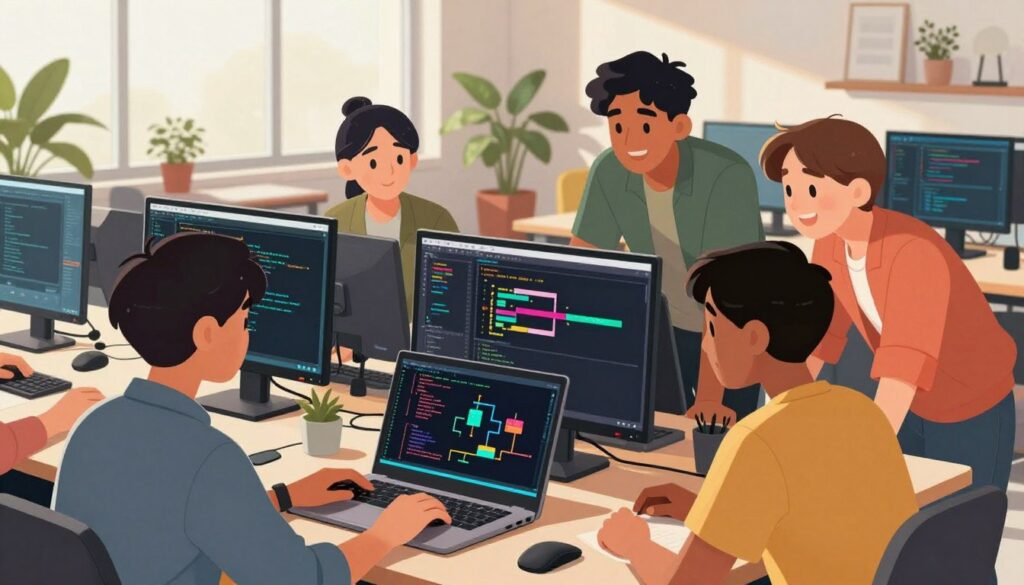
After a playable demo exists, the next step is a short, disciplined loop of changes that improve play and polish. Start with one clear goal and make a single change at a time so testing stays quick.
Incremental changes: mechanics, graphics, and difficulty
Plan one mechanic per sprint. Add a double-jump, a power-up, or a speed curve, then run a focused playtest. Ask the AI to return the full updated code so merges are clean and traceable.
Improve visuals with small sprite tweaks, particle effects, or palette shifts that keep performance high. Each change should be testable in one refresh cycle.
Mobile-friendly input and UI adjustments
Make designs that work with touch: add on-screen buttons or invisible touch zones and map them to the same handlers used by keyboard inputs. Some keyboard-only interactions need UI elements to translate well to phones.
Use screenshots when requesting layout or typography changes—the model can adapt CSS and placement from images to ensure readability on small screens.
- Keep a project log with goals, prompts, and outcomes.
- Add score persistence and simple difficulty curves to boost replay value.
- Scope tightly: small, well-tested increments reduce regressions.
“One small change, clear test, and documented result—this sequence turns a demo into a lasting project.”
Deploy Your Project: Host on Firebase and Share With Friends
Deploying a project makes every test run count—now friends can open the link and play. This step moves a local sketch into a public web instance so the team sees real results and gives practical feedback.
Initialize Firebase Hosting and test locally
Quick checklist:
- Run npm install -g firebase-tools to get the CLI tools.
- Run firebase init, select Hosting, choose or create a project.
- Set public/ as the directory and do not overwrite an existing index.html (keep your p5.js file).
Test locally with the emulators to shorten cycles. Use firebase emulators:start to run a local hosting instance on your computer and catch issues before public release.
Deploy, debug, and iterate with fast feedback loops
When ready, run firebase deploy. The CLI returns a URL like https://YOUR_PROJECT.web.app. Share that link with peers to gather quick reactions.
If auth or system errors appear, check the Firebase Console and accept Terms of Service. Use browser DevTools to capture console error lines; paste the exact error into your AI assistant to request targeted fixes.
| Action | Command | Why it matters |
|---|---|---|
| Install CLI | npm install -g firebase-tools | Provides deploy and emulator commands |
| Init Hosting | firebase init (select Hosting) | Creates project config and public directory |
| Local test | firebase emulators:start | Finds runtime issues before publish |
| Deploy | firebase deploy | Publishes working app to a shareable URL |
Best practices: keep a README landing page and a simple changelog that documents each release. Treat each deploy as an experiment: adjust assets or controls, redeploy, and record the feedback. This sequence turns a demo into a lasting, public project that kids and mentors can review together.
“Keep iterations fast: test locally, capture exact errors, and ask the AI for production-ready fixes.”
Teamwork That Scales: Pair Prompts, Roles, and Group Challenges
Small teams that split prompts, testing, and design ship better projects and learn faster. Pair a prompt writer with a tester to lower technical barriers and keep momentum. One person integrates code while the partner stresses mechanics, UI, and accessibility.
Rotate roles each session so everyone gains breadth of experience. This builds complementary strengths: one session focuses on prompts and integration; the next on playtests and polish.
Use shared documents to track prompts, design choices, and known issues. Clear notes reduce rework and let others contribute without long hand-offs.
- Pair roles: prompt + integrator; tester + designer.
- Rotate weekly: balance learning and ownership.
- Keep briefs tight: weekend challenges with a narrow task—an endless runner variant or a theme remix.
- Peer review: structured playtests and constructive critique raise quality without killing momentum.
| Role | Primary Task | Outcome |
|---|---|---|
| Prompt writer | Define scope and request full sketch | Clear, testable code drafts |
| Integrator | Paste, run, merge updates | Working build and fewer merge conflicts |
| Tester / Designer | Check mechanics, UI, accessibility | Polished play experience |
“Short loops, explicit roles, and shared records turn small tasks into repeatable learning wins.”
The team approach scales a vibe coding workflow. It keeps tools aligned, reduces blockers, and makes group projects more rewarding.
Skills That Stick: Problem-Solving, Systems Thinking, and Confidence
Hands-on projects teach systems thinking by exposing how input, state, and timing shape behavior. Working code turns abstract rules into testable parts so young learners see cause and effect.
AI-guided workflows help students break tasks into clear steps. Models explain errors in plain language and suggest fixes; that guidance raises confidence while still requiring precise prompts and decisions.
Repeated plan–build–test cycles create durable problem-solving habits. Each short loop reinforces debugging, version choices, and how small changes affect gameplay or visuals.
- Systems thinking: students map inputs to outcomes across a live project.
- Creative seriousness: making a fun game or visualizer teaches core coding concepts and design judgment.
- Resilience: setbacks become data points for the next attempt, not dead ends.
These skills translate to broader tech readiness: adapting to new tools, collaborating on projects, and tackling unfamiliar tasks. In short, practical projects build thinking, craft, and confidence that last beyond any single computer task.
“Turning ideas into small, playable projects trains both curiosity and the discipline to iterate.”
Comparing Vibe Coding and Traditional Coding for Kids and Teens
Which path to pick depends on curiosity, patience, and the kind of projects a student wants to build.
Traditional coding teaches syntax, explicit control, and deep debugging habits. It rewards careful planning and gives learners full ownership of mechanics and structure.
Natural language-first workflows speed prototyping. Students describe features, get runnable sketches, and iterate fast. This approach accelerates discovery and keeps momentum high for playful games and art.
When to start with blocks and when to move to text
Start with Scratch at ages 8–12 to build event thinking and core logic. Transition to text and AI tools—p5.js with Gemini, then Cursor or Lovable.dev—when a learner seeks style control or more complex mechanics.
- Signal to move on: consistent curiosity, frustration with blocks, or desire for finer graphic control.
- Use prompts to scaffold complexity: request a feature, test the output, then ask for the full updated sketch.
| Approach | Strength | Best next step |
|---|---|---|
| Traditional coding | Granular control and mastery | Structured lessons (CodaKid) |
| Natural language prototyping | Rapid iteration and prototypes | p5.js + Gemini → Cursor |
| Combined | Fast discovery + deep skill | Mix projects and practice |
“Both paths are complementary: rapid prototyping reveals ideas; traditional practice builds craft.”
Choosing the Right Platform by Age, Interests, and Experience
Picking the right environment matters more than picking the fanciest feature set. Match a platform to a learner’s age, interests, and appetite for structure to create quick wins and steady growth.
Age and experience matrix
Scratch (ages 8–12): Free, block-based, and ideal for early logic and event thinking. It lets kids build games and stories without syntax friction.
CodaKid: Structured progression in real languages. Plans start at $29/month for self-paced access and rise to $249/month for private lessons. It suits learners ready to move from blocks to text and curated courses.
Lovable.dev / Cursor: AI-first tools with free tiers and paid plans. Best for advanced teens tackling multi-file projects, collaboration, and git workflows.
Align platforms with goals
- Games & art: Start in Scratch, then move to p5.js with an AI assistant.
- Structured learning: CodaKid offers lessons and themed tracks like Minecraft or Roblox.
- Pro projects: Use Cursor, Replit, or Copilot when version control and multi-file design matter.
| Stage | Best fit | Why |
|---|---|---|
| Beginner | Scratch | Immediate feedback; low setup cost |
| Growing | CodaKid | Guided progression into real languages |
| Advanced | Cursor / Lovable.dev | AI workflows, collaboration, git |
Budget note: explore free tools first. Use trial periods for paid plans to confirm fit before subscribing.
“Start small, test the platform, then choose depth—this keeps learning efficient and motivating.”
Growth path: earn Scratch achievements, step into p5.js via an AI assistant, and adopt Cursor when multi-file work and git are needed.
Parents and mentors should balance ambition with support: schedule regular check-ins, celebrate small wins, and adjust tools as skills and interests evolve. This keeps coding kids engaged and progressing without burnout.
Time-Smart Routines: Short Sessions, Clear Goals, Visible Results
Small, focused blocks of work beat long, unfocused stretches. Fifteen to thirty minute sessions keep frustration low and make progress visible fast. Each session should target one concrete goal—add a jump, swap a sprite, or tune difficulty—so the outcome is obvious at the end.
Use a simple cadence: plan (2 minutes), build (10–20 minutes), test (5 minutes), reflect (2 minutes). This rhythm reduces setup overhead and keeps momentum high between sessions.
Keep a running backlog of next changes. A short, prioritized list removes decision friction at the start of every session and lets learners jump straight into work.
Pairing raises the signal-to-noise ratio: one person writes prompts while the other integrates and tests. Pair programming and show-and-tell sessions encourage accountability and faster problem solving.
- Recommend 15–30 minute sessions with a single goal to ensure visible progress.
- Close each session by capturing learnings and queuing the next prompt—small wins compound over weeks.
- Keep notes or PROMPT.md to link outcomes to prompts and preserve momentum.
“Short loops, clear goals, and documented outcomes turn sporadic play into steady progress.”
For a deeper playbook on how to structure these routines and tools that help, see a concise primer at learn to code book and practical design ideas at top 7 vibe design principles.
Next Steps: From First Game to Full-Stack Apps With AI Partners
A first game is a proof of concept; the next phase is turning that demo into a maintainable app. This section maps a practical roadmap that keeps the same prompt-driven process while adding structure and best practices.
Moving from web sketches to real-world projects
Refactor into a multi-file layout. Split sketch.js into modules: assets, input, and main loop. Create index.html, style.css, and a lightweight build plan so the codebase is easier to read and test.
Adopt git early. Use branches for features, write meaningful commit messages, and keep PROMPT.md alongside README.md to link prompts to code versions. This practice makes iteration traceable and repeatable.
Bring AI partners into navigation and refactor work. Cursor or Lovable.dev help with code review, boilerplate, and safe refactors as projects grow. Ask the model for full-file outputs and migration steps rather than incremental snippets.
- Move from single-file sketches to modular code and clear repo structure.
- Use Replit or VS Code for local edits and branch-based workflows.
- Host demos on Firebase Hosting; iterate toward backend features as needed.
Over time, the team can expand beyond games into dashboards, creative apps, or simple sites. The same prompt → run → refine loop powers larger development work and builds a public portfolio that demonstrates both code and process.
“Small, repeatable steps—refactor, branch, deploy—turn a demo into a lasting project.”
Conclusion
Conclusion
The core promise is simple: vibe coding turns plain language into runnable code that yields fast starts, clearer learning, and creative confidence.
Begin with web-only experiments: ask a model for a p5.js sketch, paste into the editor, and run. Iterate with focused prompts, capture errors, and use short sessions to keep momentum. Move to local workflows and Firebase hosting only when the project needs it.
The guide stresses balance: rapid, natural-language prototyping works alongside traditional practice. Together they build durable skills that help kids grow from a first demo to full-stack apps with AI partners.
Pick a small project today, align tools to interest, and commit to short, repeatable sessions that ship results.
FAQ
How can young learners begin coding with a low-friction approach?
Start with a short, interest-driven project—an animation, simple game, or interactive story. Use a web-based editor like the p5.js web editor or Scratch to avoid installs. Pair the environment with an AI assistant for natural-language prompts and instant feedback so students see results fast and stay motivated.
What is vibe coding and why does it work well for young learners?
Vibe coding emphasizes natural-language prompts and rapid iteration. It lets students describe ideas in plain English, get runnable code, and refine results through conversation with an AI. This lowers barriers to entry and keeps focus on creativity and immediate outcomes rather than syntax alone.
How does natural-language-driven development translate into working code?
The process asks the learner to describe behavior or visuals, then uses an AI model to generate code snippets—often in p5.js or JavaScript. The student pastes the code into an editor, runs it, and reports any issues back to the AI. Iteration closes the loop quickly: change prompt, get updated code, and re-run.
How does vibe coding differ from traditional text-first instruction?
Traditional instruction emphasizes syntax, data structures, and stepwise lessons. Vibe coding prioritizes outcomes and experimentation, using AI to handle boilerplate and translate intent. That said, it still teaches core concepts—just through project-based discovery and immediate feedback.
What fast-feedback features help teens advance their projects?
Live preview in web editors, console logs, and AI-assisted troubleshooting provide instant feedback. Quick cycles—change a parameter, rerun, and observe—build confidence and momentum. That loop encourages risk-taking and deeper exploration.
Which beginner tools are best for visual thinking and quick wins?
Scratch remains ideal for ages 8–12 due to blocks-based logic and strong storytelling affordances. For teens who want coding syntax with guided structure, CodaKid offers project-based courses and camps. Those ready for more advanced workflows can try Cursor or Lovable.dev with AI integration.
What pro-tier tools support advanced teen workflows?
Cursor and Lovable.dev provide AI-assisted code editing and pair-programming features suited to larger projects. Combining these with models like Gemini 2.5 enables code generation for web games, visual apps, and prototypes that scale toward real-world development.
How can Gemini 2.5 and p5.js be used together for web games?
Use Gemini 2.5 to generate game logic, sprites, and interaction code in plain prompts. Paste the output into the p5.js web editor to run visuals immediately. Iterate by giving the model console errors or desired feature changes, then reapply the revised code.
What constitutes a zero-stress setup for a first build?
Keep it web-only: a modern browser, the p5.js editor or CodePen, and an AI chat interface. This avoids installs and system differences. Add simple assets (images, sound) hosted online so the teen can focus on mechanics and polish.
When should a teen use a local development setup?
Move to a local setup when projects need version control, external libraries, or build tools. VS Code, npm/npx, and basic Git are enough. This step is optional and introduced once the learner feels comfortable with web sketches and iteration cycles.
How should a teen pick a first project they will stick with?
Match the project to a real interest: favorite game remakes, interactive stories, visual experiments, or simple tools. Short, achievable scopes—one mechanic, one scene—deliver satisfying results and encourage follow-up projects.
What prompt strategies help an AI produce a simple p5.js game?
Be explicit about the canvas size, core mechanics, controls, and win/lose conditions. Ask for minimal, well-commented code and request console-friendly error messages. Include examples of visuals or games as references to guide the model.
How do you test and run AI-generated p5.js code quickly?
Copy the code from the AI, paste it into the p5.js web editor, and run. Use the browser console to catch runtime errors and share those messages back with the AI to get targeted fixes. This copy–paste–iterate loop is fast and reliable.
What’s the best way to handle console errors when iterating?
Capture the exact error text and the line number, then provide that snippet and a brief description of expected behavior to the AI. Ask for minimal fixes and explain if you want alternative approaches—this produces focused, testable changes.
How can learners experiment safely without breaking a working build?
Use versioning: save copies of the code or use Git branches. Keep a “stable” file and an “experimental” file so risky changes don’t erase progress. Document prompt changes so you can reproduce successful iterations later.
How do you incrementally add features and polish to a project?
Prioritize increments: mechanics first, then visuals, then difficulty and sound. Tackle one change per iteration and test thoroughly. Use the AI to convert a feature request into a small, runnable patch that you can validate immediately.
What adjustments make web projects more mobile-friendly?
Switch to touch controls, scale canvas size with viewport units, and simplify input UI for small screens. Limit asset sizes and optimize render loops to preserve performance on phones and tablets.
How can teens deploy projects quickly for friends to test?
Firebase Hosting offers a straightforward path: initialize a hosting project, build a static site, and deploy via the Firebase CLI. For zero-setup sharing, CodePen or GitHub Pages also work well for static games and sketches.
What is the recommended Firebase workflow for first-time deploys?
Install the Firebase CLI, run firebase init hosting, place your index.html and assets in the public folder, then run firebase deploy. Test locally via the emulator or simple live server before sharing the URL with friends.
How can teams collaborate on a vibe-coding project?
Assign roles—producer (design), developer (code), tester (QA), and prompt lead (AI interactions). Use pair prompting sessions so one student writes prompts while another validates output. Version control and shared docs keep work synchronized.
Which skills developed through this approach have lasting value?
Project-based iteration builds problem-solving, systems thinking, debugging discipline, and effective prompt design. These skills transfer to software development, product thinking, and entrepreneurship.
When is Scratch the right starting point versus text-based AI-assisted tools?
Choose Scratch for ages 8–12 or for learners who need strong visual scaffolding. Switch to text and AI-assisted tools when students want more control, advanced logic, or to build web-native projects that translate to real-world code.
How should platforms be chosen by age and experience?
Match platform complexity to attention and goals: Scratch for early learners, CodaKid for structured progression and projects, and pro tools like Cursor with Gemini 2.5 for teens aiming at portfolio work and advanced interactions.
What time routines help busy teens make steady progress?
Short, focused sessions—30–60 minutes—with a clear micro-goal work best. End each session with a visible result: a playable build, a bug fixed, or a feature added. Consistency beats long but infrequent marathons.
How does a teen move from a web sketch to a full-stack app with AI partners?
Gradually introduce backend concepts: simple APIs, Firebase or Supabase for data, and deployment workflows. Use AI to scaffold endpoints, authentication flows, and client integration so learners can assemble full-stack demos sooner.