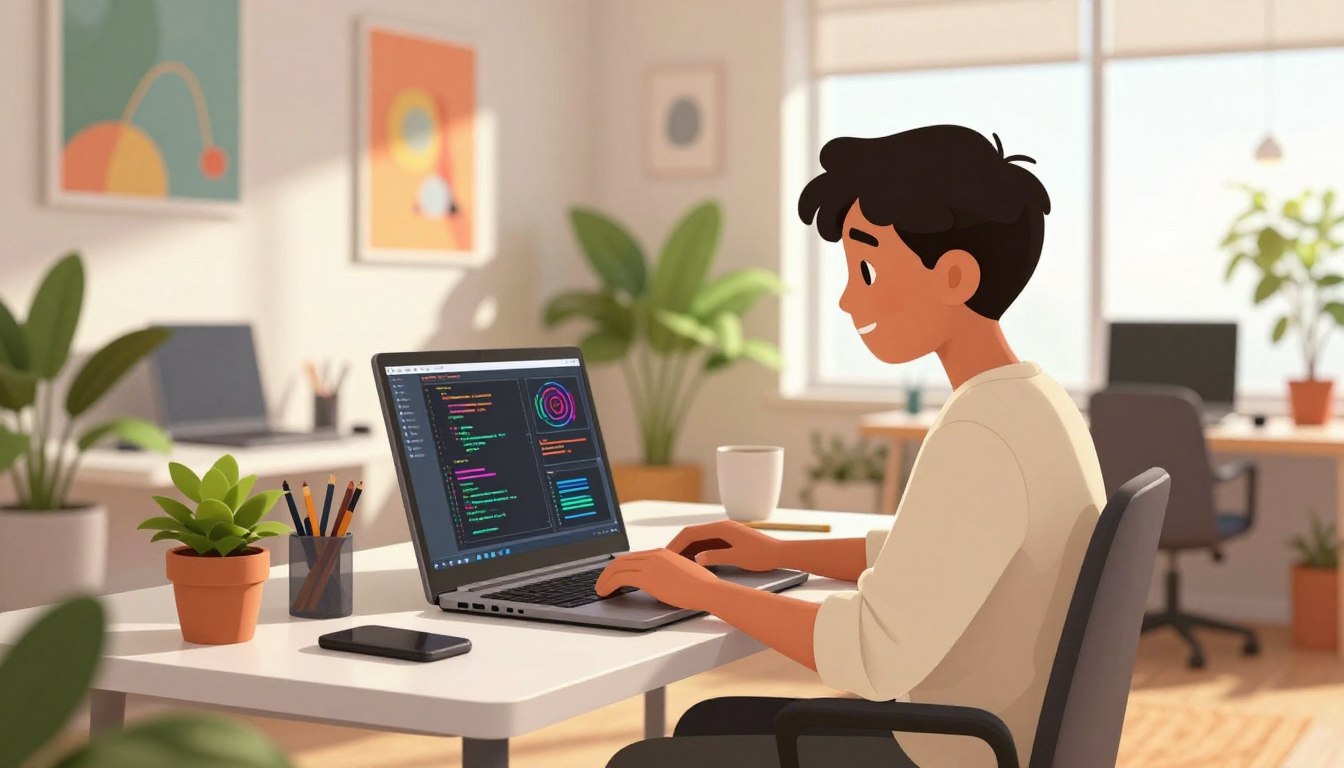
There is a quiet thrill when a child turns an idea into something that runs on a screen. Parents and educators watch a small spark become confidence. This introduction frames that moment as the start of a meaningful learning path.
Modern vibe coding shifts attention from syntax to creativity. AI tools let young learners describe ideas in plain language and get working code fast. That one change makes programming feel like invention, not intimidation.
The guide outlines simple steps: pick a friendly platform, craft a clear prompt, test in the browser, and share a playable result. Along the way, parents support safety and motivation; educators focus on fundamentals and safe prompts. For practical tips on safe practice, see teaching kids to vibe code safely and.
Key Takeaways
- Vibe coding helps kids prioritize ideas and rapid results over syntax.
- Browser workflows like Gemini UI + p5.js let learners start fast.
- Start with Scratch or guided courses, then graduate to real languages.
- Parents should pair encouragement with safety and small, visible wins.
- Use AI tools to prototype—then review and teach secure coding habits.
What Is Vibe Coding and Why It Matters Right Now
Today’s AI tools let a simple description become playable code in minutes.
vibe coding describes a new workflow: learners use natural language to state intent, and an AI produces a first-pass program. The student then guides, debugs, and refines that output. This approach shifts emphasis from syntax to creativity and problem solving.
In 2025, models such as Gemini 2.5 accelerate the process. A single prompt can generate an endless runner tested on p5.js, so ideas become prototypes right away.
Talk, don’t type: describing ideas that AI turns into code
The loop is simple: prompt, generate, test, adjust. That conversation loop trains logical thinking and helps learners break ideas into small steps. It teaches debugging and iterative design—core programming skills that last beyond any one system.
How 2025 tools make creativity the starting point, not syntax
Instant feedback reinforces learning. Seeing a game or sketch run in the browser motivates further exploration of coding concepts and teamwork. The method complements traditional lessons; it does not replace systematic study.
“Make a captivating endless runner in p5.js, no HTML, pixelated dinosaur, on‑screen instructions.”
| Aspect | What AI Provides | What Learners Practice |
|---|---|---|
| Prompt → Prototype | First-pass code from plain language | Clarifying intent; writing clear prompts |
| Test → Fix | Instant run-time feedback in browser | Debugging and iterative improvement |
| Play → Extend | Working examples like simple games | Design thinking and system decomposition |
Vibe Coding for Teens
Teen learners gain momentum when a simple idea becomes a playable prototype in minutes.
The method shifts attention from syntax to expression, so a child can test ideas with games or stories and get instant feedback.
Benefits: creativity grows because teens explore prototypes instead of wrestling with boilerplate. Rapid results build confidence: a playable mini-game reduces intimidation and creates momentum.
Benefits: creativity, problem-solving, teamwork, and confidence
AI-assisted workflows encourage systematic debugging—students isolate issues, refine logic, and learn to solve problems step by step.
Collaborative tools let groups pair prompts and run challenges together. Team roles emerge naturally: design, logic, and testing.
Building job-ready skills with AI-assisted workflows
Employers now value teams that can guide AI: prompt clearly, review output, and optimize code. Teens who practice that loop gain practical skills.
- Map benefits to action: prototypes teach creativity and fast iteration.
- Show real problem-solving: AI feedback trains debugging habits.
- Connect to careers: combine language and logic with AI tools used in modern workflows.
- Suggest pathways: move from Scratch to projects in Python or JavaScript—CodaKid offers self-paced plans at $29/month and private 1:1 coaching at $249/month.
Parents should encourage authentic interests so a child’s motivation stays intrinsic. That keeps learning sustainable and aligned with long-term skills in technology.
Set Up: What You Need to Get Started Today
Getting started should be immediate: a browser and a good prompt are enough to make a playable sketch. This section outlines two practical phases so parents and educators can pick the right path for a child’s learning pace.
Phase One: Browser-only fun with Gemini UI and p5.js
Quick step: open gemini.google.com, choose Gemini 2.5 (Flash for speed, Pro for quality), and ask for a small sketch. Copy the generated JavaScript into the p5.js editor at editor.p5js.org and run it—no installs required.
Keep it simple for kids: any modern browser on a larger computer screen helps, but a tablet or laptop works. Track prompts in a PROMPT.md so ideas and results stay organized as skills grow.
Phase Two (optional): Local environment, npm, and an editor
When a child is ready, install Node.js (v18+), npm, and a code editor like VS Code or IntelliJ. Add Git for version control, and create a public directory with index.html, sketch.js, and style.css.
- Use Firebase emulators at http://127.0.0.1:5000/ for local testing.
- Version prompts and code before deploying—follow Firebase instructions to avoid overwriting p5.js files.
This two-phase system scales with confidence: fast wins first, then a predictable environment for deeper work in technology and real-world workflows.
Choose Your Platform: The Best Tools and When to Use Them
Choosing the right platform shortens the learning curve and keeps motivation high.
CodaKid teaches real languages—Python, JavaScript, and Java—through 85+ project-driven courses. Parents can pick a $29/month self-paced plan or $249/month private 1:1 lessons and camps. This path is ideal when the goal is steady skill development and portfolio projects.
Scratch is free and block-based. It builds confidence for ages 8–12 and helps young learners understand logic without syntax. Start here to make quick games and animations that teach core programming concepts.
Lovable.dev and Cursor.com
These platforms target advanced students who want pro-grade assistance. Both offer AI helpers, free tiers, and paid plans. They suit full-stack projects and smart debugging when learners move beyond basic apps and games.
Gemini 2.5
Gemini 2.5 accelerates prototyping: one prompt can generate runnable code, such as an endless runner testable in p5.js. Use its Advanced Coding mode with integrated codelabs and Firebase Hosting to iterate and share quickly.
Replit and GitHub Copilot
Replit is an accessible browser IDE with AI features—great for quick experiments and collaboration. GitHub Copilot provides inline suggestions inside editors like VS Code, helping a child learn idiomatic patterns as they type.
- Match tools to goals: Scratch builds foundations; CodaKid transitions to real languages.
- Advanced learners should try Lovable.dev or Cursor.com for full-stack development support.
- Replit and Gemini 2.5 speed up prototyping; Copilot adds context-aware help in an editor.
- Parents can choose self-paced plans for independence or private lessons for focused mentoring.
For a curated list of platforms and recommended tools, see best tools and platforms for kids at.
Start With What Kids Already Love: Games, Art, and Stories
Tie a first lesson to a hobby—art, storytelling, or a beloved game—and learning becomes immediate.
Practical projects that match interests keep frustration low and curiosity high. Short sessions (15–20 minutes) with one small goal make progress visible and fun. Let AI guide step-by-step and give instant feedback so mistakes become part of the experience.
Quick wins: Minecraft modding, simple animations, and mini-games
- Begin with familiar games and art to lower the barrier—kids see personal relevance and engage longer.
- Use short, focused sessions; ship one feature at a time so progress feels tangible and fun.
- Try Minecraft modding or p5.js animations for fast gratification while practicing logic and coding.
- Encourage storytelling—interactive sketches or simple visual novels help ideas take shape quickly.
- Let AI suggest next steps and fixes so young learners gain confidence and learn to think like programmers.
- Parents can co-create prompts, making the process collaborative and supportive at home.
- Celebrate small wins publicly—share a link or screen recording—to reinforce intrinsic motivation.
Write Your First Prompt: From Idea to Playable Prototype
Start by framing a single playable outcome: a short game, an animation, or an interactive story.
Working starter prompt: “Make me a captivating endless runner game. Key instructions on the screen. p5js scene, no HTML. I like pixelated dinosaurs and interesting backgrounds.”
Choose Gemini 2.5 Flash for faster iteration or Pro for higher quality. Ask the model to return the entire updated file so copying into the p5.js editor is seamless.
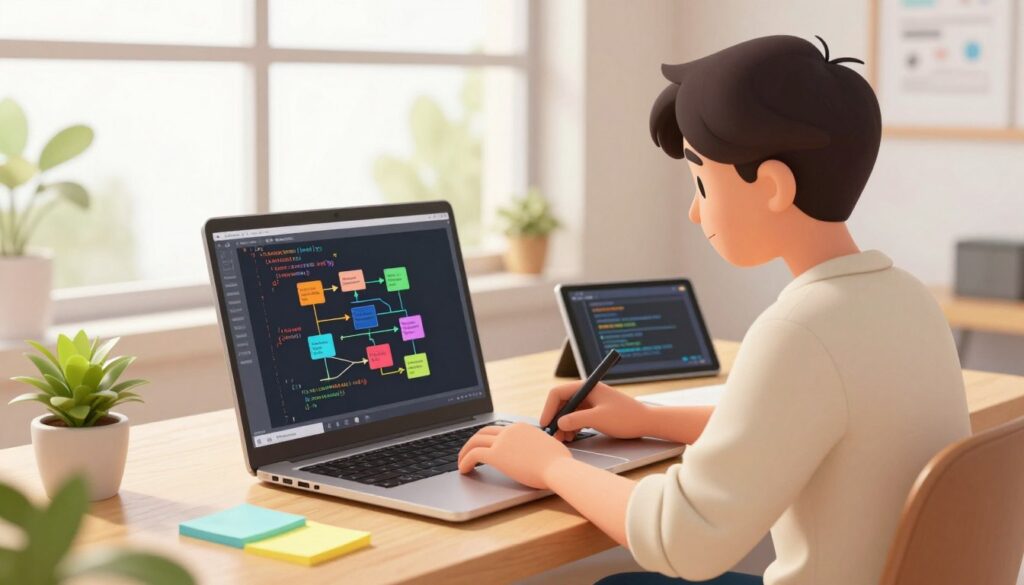
Prompt templates for games and interactive sketches
Begin with outcome: genre, visuals, and on-screen instructions. Specify inputs early—keyboard, mouse, or touch—so mobile controls work without rework.
Be explicit about inputs, mobile controls, and visual style
- Tell the model the target platform and constraint: “p5js scene, no HTML.”
- Add style cues: pixel art, color palette, or emoji icons to shape visuals and tone.
- Request full files after each revision and note which model you used.
“Treat prompting as a design skill—clarity and structure lead to better first drafts and fewer fixes.”
For a quick case study and a short prompt set, see vibe code a retro game to jumpstart projects and help kids learn practical coding skills.
Test Fast on p5.js and Fix Errors with AI
A swift test in the browser reveals whether an idea becomes playable right away.
Open editor.p5js.org, replace sketch.js with the AI output, and press play. This simple step validates assumptions and turns concept work into immediate feedback.
When the code works: iterate features and polish
If the sketch runs, add one feature at a time: double jump, high scores, or a difficulty curve. Ask the model to return the entire updated file so nothing breaks during copy/paste.
When the code fails: copy errors back to the AI and retry
If you see console errors, paste the exact text into Gemini and request fixes. Returning the real error turns debugging into a guided task—learners practice logical thinking and technical troubleshooting.
- Move quickly from prompt to test: validate the code in the editor right away.
- Return exact error text to the AI; this makes debugging fast and teachable.
- Track versions: p5.js has limited history—export files and use Git as projects grow.
- Use screenshots to request UI tweaks; visual feedback speeds the revision process.
- Keep a tight process: test, capture feedback, update prompts, repeat.
“Treat testing as a learning loop—each cycle builds practical skills and better design thinking.”
Iterate Like a Pro: Refine, Remix, and Request Full Code
Refining a small game into a polished experience is where practical learning accelerates. Start with one clear goal and test that change quickly. Small, focused edits teach disciplined development and better design thinking.
Add common features as separate steps: a double jump with a 300ms cooldown, a simple high-score table that saves names, and a gradual speed increase to raise difficulty. Each feature is an example that trains logic and playtesting habits.
Add features: difficulty curves, high scores, and double jump
Plan a roadmap. Prioritize one feature at a time—difficulty, scoring, or controls—for clean testing. Use concrete prompts: “Add a double jump with a 300ms cooldown and an on-screen indicator.”
Prompting tip: ask for the entire updated file to simplify copy/paste
AI often returns partial diffs. Request the full, updated file so no edits are missed across functions. Save each iteration in Git and keep a PROMPT.md to log what worked and why.
- Measure playability: tweak pacing, feedback, and challenge curves.
- Tag stable releases in Git so you can roll back if needed.
- Encourage remixing—swap art, backgrounds, or sound to practice creativity.
- Iterate like a small dev team: define a goal, ship a change, test, and document learnings.
“Version prompts and code—preserve working milestones to teach reliable development habits.”
Optional: Host and Share Your Game with Firebase
Publishing a playable project gives learners a clear milestone and a chance to show work to others. This step moves a local sketch into a public URL so friends and family can open the app on any device.
Initialize Firebase Hosting without overwriting your p5.js files
Prepare a clean public folder with index.html, sketch.js, and style.css before you start. Install the Firebase CLI (Node.js v18+): npm install -g firebase-tools or npm install firebase-tools.
In the project root run firebase init. Select Hosting, confirm public as the directory, answer “No” to the SPA rewrite, and choose Do not overwrite when prompted about public/index.html.
Local emulator testing for a tight feedback loop
Start the Emulator Suite with firebase emulators:start and open http://127.0.0.1:5000/ on your computer. This environment lets learners test changes fast and catch console errors before deployment.
Deploy to a public URL and share safely
When ready, run firebase deploy and copy the Hosting URL like https://YOUR_PROJECT.web.app. Use Git to track deployment-ready versions and keep history clean.
- Test locally first; paste console errors into Gemini for guided fixes—this keeps debug cycles short.
- Confirm Node.js v18+; use nvm on shared machines if needed.
- Hosting turns a prototype into a shareable example—an important step in development and technology education for kids and any child exploring vibe coding.
“Deploying teaches responsibility: versioning, testing, and sharing are core skills in modern coding.”
Collaborate and Celebrate: Pair Coding, Challenges, and Showcases
Pair sessions and short showcases make projects feel social and purposeful.
Pair coding sessions use timeboxed role switches every 10–15 minutes. One student drives while the other reviews and suggests changes. Then they swap roles. This keeps focus and builds communication skills.
Run brief group prompts that split tasks: design, logic, and testing. Each role maps to a real development job. Groups learn to rely on strengths and to ask for help when needed.
Role switching, group prompts, and show-and-tell
Short challenges energize sessions. Give a 20-minute constraint: add a new obstacle, make a theme mod, or improve visuals. Quick wins reinforce learning and creativity.
Finish with show-and-tell. Presentations build confidence and listening skills. Peer reviews should be positive and specific; they teach constructive feedback.
- Pair coding with timeboxed swaps keeps both partners engaged.
- Group prompts distribute strengths—design, logic, testing—like a small studio.
- Short challenges practice creative constraints and rapid iteration.
- Showcase projects publicly to develop presentation skills and confidence.
- Parents can set schedules and small milestones to sustain momentum.
- Document decisions and prompts to improve the shared learning experience.
“Collaboration turns solitary practice into a social, meaningful activity in a child’s world.”
| Format | Duration | Primary Benefit |
|---|---|---|
| Pair coding (role swap) | 10–15 min per role | Communication and joint problem solving |
| Group prompt | 30–60 min | Teamwork and role specialization |
| Short challenge | 15–25 min | Creativity under constraints; quick iteration |
| Show-and-tell | 5–10 min per project | Presentation skills and peer feedback |
Guidance for Parents and Teachers in the United States
Short, focused routines help children make steady progress without frustration.
Keep sessions to 15–20 minutes. End each meeting with a clear win so a child feels success. Align projects with a child’s interests; personal relevance makes practice sustainable.
Timeboxing sessions, supervising AI use, and keeping it fun
Timebox: schedule short blocks and stop while momentum is high. This habit turns practice into a predictable routine.
Supervise AI: sit with prompts and outputs. Help translate suggestions into age-appropriate next steps and safety checks.
Encouraging a growth mindset through small wins
Normalize iteration: bugs are tasks to solve, not failures. Celebrate small fixes and note what the child learned.
- Mix solo work and group challenges—each format builds different skills.
- Ask reflection questions: what did kids learn, where did they struggle, what will they try next?
- Keep tone light and kind; humor and curiosity sustain interest in technology.
| Action | Duration | Primary Benefit |
|---|---|---|
| Timeboxed session | 15–20 min | Regular progress and low fatigue |
| Supervised AI prompt | 5–10 min | Safer, clearer guidance; less frustration |
| Group show-and-tell | 10–20 min | Community feedback and confidence |
Track small achievements to show how benefits vibe coding appear quickly: kids learn to iterate, solve problems, and build resilience. For broader context on AI in parenting roles see AI as a parental figure.
From First Project to Future-Ready Skills
Early projects should map directly to practical skills that matter in school and the job market.
Bridging Scratch to Python, JavaScript, HTML/CSS, and robotics
Start with block-based tools to teach fundamental logic and basic coding concepts. Then introduce Python or JavaScript to deepen programming and problem solving.
Add web development—HTML and CSS—so learners can publish simple apps and interactive pages. Offer optional robotics to connect software to hardware and teach automation basics.
Graduating to advanced platforms and AI-augmented development
As skills mature, use platforms like Cursor and Lovable.dev to build full-stack projects. These tools help students apply AI as a teammate: guide generation, review code, and refine architecture.
- Chart a progression: Scratch → Python/JavaScript → web technologies.
- Build a portfolio: host projects, document prompts, and show before/after iterations.
- Translate coding into transferable skills—planning, testing, and communication.
“Treat AI as a collaborator: ask, review, refactor, and learn from each revision.”
| Stage | Focus | Outcome |
|---|---|---|
| Beginner | Scratch; logical thinking; games | Confidence; basic programming habits |
| Intermediate | Python/JavaScript; HTML/CSS | Deployable apps; portfolio projects |
| Advanced | Full-stack tools; robotics; AI-assisted dev | Real-world development skills; job readiness |
Practical advice: encourage children to revisit and refactor early projects. Measuring improvements teaches thoughtful thinking and reinforces long-term skills in a world shaped by AI-enhanced technology.
Conclusion
The practical loop—prompt, test, iterate, host—turns ideas into live results quickly.
vibe coding in 2025 uses tools like Gemini 2.5, p5.js, and Firebase to move a prompt into a hosted prototype.
Start with interests to keep kids engaged. Choose platforms wisely: Scratch for basics, CodaKid to level up, and pro assistants such as Lovable.dev or Cursor.com as projects grow.
Parents can timebox sessions, supervise AI, and celebrate small wins. Teens who learn to guide AI gain real-world skills and a clear path to building apps and sharing work.
Keep versioned prompts, document progress, and publish links—this is the way creativity meets real code and prepares a child for the technology world.
FAQ
How can young learners start coding with flow?
Begin with a clear project idea—game, animation, or interactive story—then use browser tools like p5.js and a conversational AI to turn the idea into code. Start small: a single feature or mechanic, test it in the browser, and iterate. This approach emphasizes creativity and fast feedback so learners build confidence quickly.
What is vibe coding and why does it matter right now?
Vibe coding describes a creative-first workflow where ideas are described in natural language and AI translates them into working code. In 2025, tools have matured so creativity — not syntax — is the entry point. That lowers barriers, accelerates prototyping, and helps young people focus on problem solving and design.
How does “talk, don’t type” work when AI turns ideas into code?
Learners describe mechanics, controls, and visuals in plain sentences or prompts. The AI generates code, which the student runs in a browser environment. The student inspects, tweaks, and asks the AI for revisions. This loop teaches computational thinking and debugging without heavy syntax overhead.
What makes modern tools shift creativity to the starting point instead of syntax?
Integrated AI assistants, live previews, and example-driven libraries let students see results immediately. Tools like Gemini and browser-first platforms remove setup friction, so the initial act is imagining and designing rather than memorizing language rules.
What are the main benefits of this approach for teens?
Students gain creativity, problem-solving skills, teamwork experience, and confidence. They learn to iterate rapidly, communicate requirements clearly, and produce portfolio-ready projects. These habits map directly to job-ready abilities in software and digital design.
How do AI-assisted workflows help build job-ready skills?
AI-assisted workflows teach prompt design, code review, and integration practices. Teens learn version control patterns, modular thinking, and how to translate user needs into technical solutions—skills employers value across tech and product roles.
What do kids need to get started today?
Phase One requires only a browser and access to p5.js or an online editor like Replit. Optional Phase Two adds a local environment: Node.js/npm and a code editor such as Visual Studio Code for more advanced projects. A modern browser and a curiosity to experiment are the essentials.
How does a browser-only setup with Gemini UI and p5.js work?
Use p5.js for sketches and game prototypes, then pair it with a conversational AI or Gemini UI for on-the-fly code generation and fixes. Students write prompts, paste generated code into an online editor, and see immediate visual feedback—ideal for quick learning cycles.
When should learners move to a local environment with npm and an editor?
Move locally when projects require packages, build tools, or more complex file structures—typically for multi-file games or web apps. Local setups teach dependency management and local testing, preparing students for real-world development workflows.
Which platforms are best for different skill levels?
CodaKid suits learners ready for real languages and structured courses. Scratch is ideal for absolute beginners using visual blocks. Lovable.dev and Cursor.com offer pro-level environments for advanced teens seeking full-stack workflows. Replit and GitHub Copilot are excellent for browser-based coding with AI assistance.
Why choose CodaKid or Scratch at early stages?
CodaKid provides project-based lessons in real languages that scale toward professional skills. Scratch builds foundational logic and confidence through visual blocks, making transitions to text-based languages smoother.
What do Lovable.dev, Cursor.com, and Gemini 2.5 offer advanced students?
Lovable.dev and Cursor.com provide powerful, AI-augmented IDEs and workflows for full-stack experimentation. Gemini 2.5 supports advanced iteration and integrated codelabs, enabling fast prototyping and sophisticated feature development.
How do Replit and GitHub Copilot fit into learning?
Replit gives a browser playground for instant sharing and collaboration; GitHub Copilot offers inline AI guidance within editors. Both reduce setup time and help students focus on features and architecture rather than tooling.
What are quick wins to engage kids using games, art, and stories?
Start with Minecraft modding, simple p5.js animations, and mini-games like endless runners or memory matches. Quick, visible results reinforce curiosity and provide tangible milestones that support sustained learning.
How should a beginner write their first prompt to get a playable prototype?
Be specific: describe gameplay mechanics, inputs, controls (touch or keyboard), and visual style. Include desired resolution, color palette, and a short success condition. Clear constraints make generated code easier to run and refine.
Are there prompt templates for games and interactive sketches?
Yes—templates typically include sections for goal, controls, entities, assets, and scoring. For example: “Create a 800×600 p5.js game where the player moves left/right, collects stars, and a score appears at top-right.” Templates speed iteration and reduce ambiguity.
How should students test fast on p5.js and fix errors with AI?
Run sketches in the browser, observe failures, and copy error messages into the AI prompt with context. Ask for targeted fixes and minimal diffs. This teaches debugging discipline and how to craft effective follow-up prompts.
What to do when code works versus when it fails?
When code works, iterate: add features like difficulty curves or high scores and polish visuals. When it fails, capture the exact error, share the relevant lines with the AI, and request step-by-step debugging. Both paths teach valuable development habits.
How should learners iterate like professionals?
Refine mechanics, remix assets, and request full updated files from the AI to simplify copy/paste. Add features incrementally—difficulty, leaderboards, new levels—and run quick tests after each change to maintain momentum.
How can a teen host and share a game with Firebase safely?
Initialize Firebase Hosting in a project folder without overwriting p5.js files by following the CLI warnings and using the public directory correctly. Use the Firebase local emulator for testing before deploying to a public URL, and manage access via simple rules.
What is the benefit of local emulator testing for hosting?
The emulator provides a safe, fast feedback loop that mirrors production behavior. It catches routing, asset, and configuration issues before public deployment, reducing the chance of accidental exposure or broken builds.
How can kids collaborate and celebrate their projects?
Use pair coding with role switching, group prompts, and regular show-and-tell sessions. Organize small challenges or hackathons and showcase projects on Replit or hosted URLs to build community and motivate improvement.
What guidance should parents and teachers follow in the United States?
Timebox sessions to maintain focus, supervise AI use, and emphasize incremental goals to keep activities fun. Encourage a growth mindset by celebrating small wins and teaching responsible online sharing and copyright awareness.
How do students bridge from visual tools to text languages and robotics?
Start with projects that mirror Scratch logic in JavaScript or Python, then introduce HTML/CSS for web interfaces. Gradually add hardware projects—micro:bit or Arduino—so learners connect code to physical outcomes and real-world problem solving.
When should a student graduate to pro-level environments like Cursor or Lovable.dev?
Move up when a student is comfortable building multi-file projects, using package managers, and wants AI-augmented full-stack workflows. These platforms support advanced features, collaboration, and deployment pipelines used in professional settings.