“By failing to prepare, you are preparing to fail.” — Benjamin Franklin.
This guide lays out a repeatable, quick-start method students can apply to any class task. It frames setup as a three-step system: confirm access and settings, craft content, then verify submission and feedback.
Plan to have a functioning assignment process in about 10–15 minutes. FlowScholar acts as the AI layer that converts notes into clear drafts, polishes answers to required prompts, and standardizes formatting before upload. Readers may visit FlowScholar to speed outlining and final drafts.
The guide maps to common LMS steps—Add assignment menus, visibility toggles, deadlines, assessment scales, and recipient checks—and links to a practical how-to on creating your first assignment at creating your first assignment.
Outcome focus: fewer late submissions, fewer version conflicts, and clearer grading because details stay consistent from start to finish.
Key Takeaways
- Use a three-step system: access, build, verify.
- Set checkpoints: title, files, visibility, deadline—confirm before submit.
- FlowScholar accelerates drafting and formatting for faster, clearer work.
- Quick-start setup typically takes 10–15 minutes to prepare a functional process.
- Guide works across common LMS patterns and supports group-control best practices.
Before You Begin: Set Up Your Course, Assignment Details, and Access
Verify access to the course and compile the assignment information you will rely on.
Confirm course access and visibility. Check your role and permissions on the course page. If you cannot view an assignment, it may be gated by release conditions or dates. Contact an instructor or admin when permissions block visibility.
Collect a single source of truth. Copy instructions text into one document, save every link, and download any files. Rename files using a clear format: title_version_date. This prevents uploading wrong files at submit time.
Plan date, time, and late rules
Choose a deadline date and the exact time, and confirm the time zone if the course spans regions. Note whether systems will close after deadline or allow late uploads. Record those settings so you avoid confusion.
Use FlowScholar to prep
FlowScholar can extract requirements from instructions text, generate a checklist, and build an outline that matches submission format. Visit FlowScholar to operationalize these pre-work steps and align content with rubrics.
| Pre-flight Item | Action | Why it matters |
|---|---|---|
| Course access | Confirm role and visibility on course page | Prevents gated assignments from blocking submit |
| Materials | Save instructions, links, and files in one folder | Keeps content consistent during work |
| Deadline | Set date, time, time zone, and late rules | Reduces last-minute errors and penalties |
Pre-flight checklist: access confirmed, materials gathered, deadline clarified, submission format understood. For a focused start, also review any instructor settings that affect visibility and timing.
Prompt engineering course is a useful internal resource to refine how prompts and outlines map to assignment requirements.
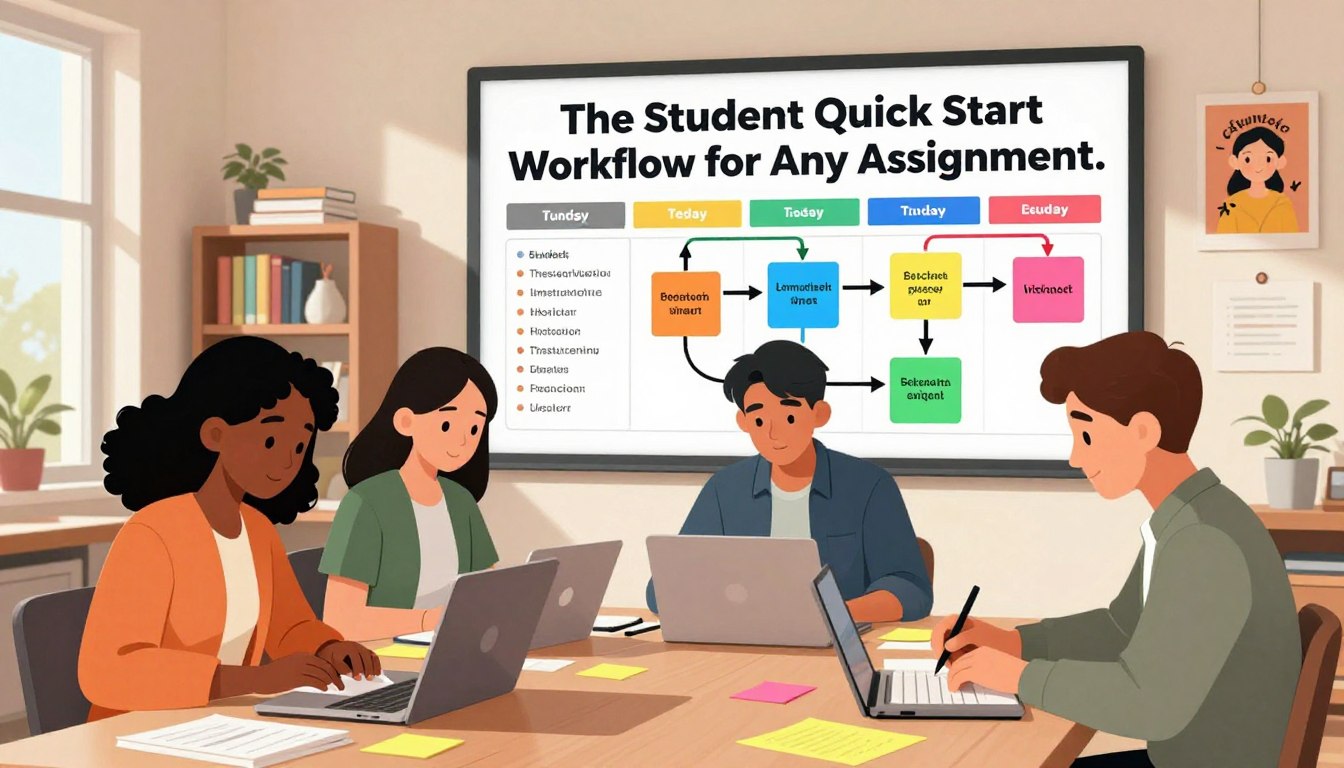
The Student “Quick Start” Workflow for Any Assignment
Follow a concise, repeatable sequence so each submission is faster and clearer.
Begin at your course page, open the Add area, and locate the assignments panel to start a reliable submission process.
Navigate and open the assignment panel
Go to the course page and find Add resources or activities. Choose the assignment option to open the form that collects title, description, and required questions.
Create clear title, description, and questions
Use a precise title and a scannable description. List required questions so answers align with the rubric and reduce follow-up requests.

Add files, attach a link, or embed a video
Drag and drop templates, drafts, and citation files. Attach a link to a reference or embed a short video when allowed.
Set visibility and deadline settings
Choose visibility so students view the task at the right time. Set a clear deadline with date time, tick close-after-deadline if needed, and enable reminders.
Pick assessment and assigned recipients
Select an assessment scale and grading visibility. Confirm whether the item targets all students or a specific group—this prevents misassignment.
Finalize, submit, and verify
Double-check title, attached files, and settings before clicking the Create or Submit button. After creation, verify the page shows the correct title, files, and due time as the final checkpoint.
“A repeatable process reduces errors and saves time.”
FlowScholar acts as a draft-to-submission copilot—it answers required questions, polishes content, and aligns drafts to grading expectations. Visit FlowScholar for faster drafting and cleaner final submissions, and see a compact resources guide at resources and activities overview.
Handling Group Assignments Without Losing Time or Versions
Missing a group join step often hides an assignment and costs time. Join groups early so every member gains access and the item appears in grades. This single action removes the most common gating delay and avoids last-minute scramble.
Join, read context, and confirm access
Look for a group name beside the title and open the member list to view who is on the team. If a user hasn’t joined, that person may not see the assignment or grade entry.
Coordinate edits with a one-editor rule
Many systems lock editing when one person opens a group file. Use a short protocol: designate an editor, send a take control message to hand off, and confirm approval before switching.
Save drafts, track versions, and submit once
Save drafts frequently and name files with a clear number and date. Only one member should submit on behalf of the group; confirm any confirmation prompts that ask to submit for others.
| Topic | Action | Why it matters |
|---|---|---|
| Gating | Join group early | Ensures access and grade visibility |
| Editing | Use take control protocol | Prevents overwrite and parallel edits |
| Submission | One submit, verify timestamp | Confirms correct file and submission time |
- Agree who edits and when; keep handoffs short.
- Use messages or quick video meetings to resolve disputes and get instructor feedback fast.
- After submit, open the assignment panel to verify the submission date and file version.
Tip: Use FlowScholar as a shared drafting assistant to merge sections, standardize tone, and reduce rewrite cycles—visit flowscholar.com to speed consensus. For technical submission steps, see the guide to submit group assignments.
After Submission: Track Grades, Instructor Feedback, and Improve Your Next Draft
After you submit, a short checklist helps track grades, decode feedback, and plan a stronger revision.
Confirm status and recorded date time
Open the assignment panel and check submission status. Confirm the recorded date and time so you can prove on-time submissions if needed.
Preview the uploaded files to ensure the correct file and format were captured. If a preview shows an error, contact tech help right away.
Where to view grades and feedback
Grades often appear in an activity stream, on course grades pages, or on a global gradebook. A “Not graded” label may persist until instructors post results—this delay is normal.
Open the feedback panel to view group comments and individual notes. Instructors may assign different grades to group members; document contributions to support any questions.
Turn feedback into a usable revision plan
Capture action items by categorizing comments: clarity, coverage of requirements, evidence, and formatting.
- Fix high-impact issues first: rubric items and missing citations.
- Save a versioned copy and keep a short change log for each revision.
- Reuse the improved structure as a template for future assignments to streamline grading and reduce errors.
Consistent titles and file names matter. Match the assignment title across syllabus, LMS, and gradebook. Stable file naming reduces lost attachments and grading friction.

Use FlowScholar to summarize instructor feedback, propose targeted revisions, and standardize formatting for future submissions. Visit https://www.flowscholar.com to convert comments into an improvement plan and reusable templates.
Conclusion
Close each work cycle with two quick checks that prevent avoidable errors and lost credit.
Summarize the core logic: confirm access and requirements, build and verify submission-ready content, coordinate group edits, then use grades and feedback to improve the next draft.
Speed comes from structure. Students who standardize how they capture questions, attach files, confirm deadlines, and review settings cut repeat work and reduce missed marks.
Treat every task as an iterative system: feedback becomes advantage, not just a critique. Make roles, versions, and submit responsibility explicit to avoid last-minute conflict.
Adopt a two-checkpoint habit: verify before submit (title/files/deadline) and verify after submit (timestamp/status), then archive materials for reuse.
Get help to scale this process: use FlowScholar to accelerate planning, drafting, and revision across each cycle — visit https://www.flowscholar.com.
FAQ
How do I confirm I have access to the course and can view assignments?
Log in to the learning platform, open the course page, and look for the assignments or assessments area. If an assignment doesn’t appear, check course enrollment status, refresh the page, and confirm access with the instructor or support team. Use the course roster and access settings to verify permissions.
What essentials should I gather before creating or completing an assignment?
Collect the assignment title, clear instructions text, required questions or prompts, any links, supporting files, and media such as videos. Note submission format expectations (file types, word count) and grading criteria to align your work with instructor requirements.
How do I decide the deadline date, time, and late submission rules?
Coordinate with the syllabus and instructor guidelines to set an appropriate date and time. Choose a close-after-deadline option and communicate late penalties or allowed grace periods. Add reminders and visibility windows so participants know when submissions open and close.
Where do I find the “Add assignment” area on the course page?
On most platforms, open the course navigation and select Assignments, Activities, or Content. Look for buttons labeled Add assignment, Create, or New Item. If hidden, check course settings or the instructor’s dashboard and use the search or help menu.
What makes an assignment title and description effective?
Use a concise, specific title and a step-by-step description that lists objectives, required questions, submission format, and grading rubric. Include due date, expected time to complete, and any reference links to ensure clarity for both individual and group work.
How should I add supporting content like files, links, or embedded video?
Upload required files, attach external links, or embed video using the platform’s content tools. Label each resource clearly and confirm file formats and file names match instructor preferences. Preview embedded media to verify playback and accessibility.
How do I control assignment visibility so learners see it at the right time?
Use visibility settings to schedule publish and unpublish dates, set release conditions, or limit access by group. This ensures materials appear only when intended and supports staged rollout for modules or cohorts.
What deadline settings should I choose, including reminders and close-after-deadline options?
Set a specific date and time, enable automated reminders before the due date, and decide whether to allow late submissions and how long after the deadline they will be accepted. Configure time zone settings so timestamps match participants’ locations.
How do I select assessment and grading settings that match course expectations?
Choose a grading scale (points, percentage, rubric), attach criteria or a rubric, and decide on anonymous grading if needed. Align settings with syllabus policies and confirm gradebook integration so scores flow into the central grade record.
How should I assign work to individuals versus groups?
Specify the assignment audience by selecting individual students, sections, or predefined groups. For group tasks, attach group rosters, set a single-submission policy if required, and confirm each member’s access and role permissions.
What steps finalize an assignment and make it live?
Review the title, description, files, visibility, deadline, and grading settings. Confirm assignees and then click Create, Publish, or Submit. After creating, reopen the assignment page to verify all elements display correctly.
How do I verify the assignment page shows the correct title, files, and deadline?
Open the assignment as a viewer or use a preview mode. Check the displayed title, attached files and links, embedded video, and the published deadline. Test download links and playback to ensure resources work.
How do groups join and gain access to group assignments?
Join a group through the course group roster or accept an invitation. Once added, members will see group-specific assignments. If group access is missing, confirm membership with the instructor and check group visibility settings.
How can teams coordinate edits without overwriting each other?
Use the platform’s collaboration tools or a “take control” feature so one person edits at a time. Save drafts frequently, use version history to restore prior work, and assign clear roles for drafting, reviewing, and finalizing content.
What’s the best practice for saving drafts and tracking versions for a group submission?
Save drafts regularly, name files with timestamps or version numbers, and enable version history when available. Agree on a final submission owner who will review all changes and submit the single group file.
How do group conversations or virtual meetings speed instructor feedback?
Use group messaging, threaded discussions, or scheduled virtual meetings to ask targeted questions and share drafts. This lets instructors provide timely input and reduces revision cycles by clarifying expectations early.
How do I check submission status and the exact submission date/time?
Open the submission page to view status indicators—Submitted, Draft, or Late—and the recorded date/time stamp. Many platforms log the user who submitted and provide downloadable receipts or confirmation messages.
Where can I view grades and instructor feedback, including group and individual notes?
Access the gradebook or assignment feedback area to see scores, rubric comments, annotated files, and any private or group-level notes. Set notifications to receive alerts when instructors post feedback.
How does using consistent titles and formats help avoid grading issues?
Consistent naming conventions and standardized file formats prevent confusion, make it easier to match submissions to rubrics, and reduce lost files. Follow instructor file-naming instructions and submit the requested format.
What should I do if I need help with assignment settings or have technical issues?
Contact the platform support team, consult the help center, or reach out to the instructor with a clear description of the issue, screenshots, and the exact assignment title. Include course details and deadlines to receive faster assistance.