
“What gets measured gets managed.” — Peter Drucker.
This article promises a diagnostic approach to progress: metrics that guide action, not metrics that inflate busy work.
Teams need a clear, concise view of their work. An effective system shows movement toward defined success conditions and highlights true bottlenecks.
As an Education AI Tool, FlowScholar helps ambitious professionals turn activity into outcomes. It makes the flow of work visible, reduces noise, and keeps teams aligned under real constraints.
The guide will walk readers through designing a tracking system, reading status signals, isolating breakdowns, and turning findings into stakeholder-ready updates. We focus on present realities: distributed teams, frequent automations, and the need to surface the right information at the right moment.
Ready to adopt a pragmatic, troubleshooting mindset? Visit https://www.flowscholar.com to learn how the approach scales with tools and automation. For practical optimization tactics, see this guide on streamlined processes: streamline your processes.
Key Takeaways
- Adopt diagnostic metrics that prompt action, not more meetings.
- Define progress by movement toward clear success conditions.
- Use fewer, better indicators to reduce cognitive load and improve decisions.
- Isolate signals—status, history, time, errors—and act quickly.
- Design the tracking system for distributed teams and common automations.
Why progress visibility breaks down (and what it costs teams)
Hidden handoffs and stale numbers leave many teams blind to true momentum. The result: lots of activity but little actionable insight. Studies show 39% of projects fail due to poor planning or outdated tools, and 37% fail because goals lack clarity. Poor visibility can waste an average of 11.4% of investment.
The disconnect between effort and insight
Teams spend hours in updates and dashboards that measure tasks, not outcomes. When tracked activity does not map to decision points, effort fails to become useful information.
Data overload vs. better signals
More data hides early warnings. Overloaded reporting delays detection of slips in time, quality, or cost. Better signals—few, timely, and outcome-focused—prevent cascading issues.
“If status updates feel punitive, teams hide bad news; reporting becomes performance theater.”
| Symptom | Business cost | Remedy |
|---|---|---|
| High task completion, stalled deliverable | Rework, missed deadlines, wasted spend | Track dependencies and rework triggers |
| Long meeting cycles, many dashboards | Decision lag, low throughput | Adopt a lightweight system tied to success criteria |
| Punitive status culture | Hidden risks, delayed escalation | Build psychological safety and concise communication norms |
- Example: a team reports many closed tasks while the core flow stalls due to invisible dependencies.
- Principle: make reporting safe, lightweight, and tied to a shared definition of done.
- Value: The Education AI Tool helps teams form better habits—clear narratives of change, why it matters, and next steps—without manual overhead. For technical run diagnostics, consult this guide to resolving run failures: run failure troubleshooting.
Set up a progress tracking system built for real work (not busy work)
A focused setup turns noisy data into clear options for action.
Define scope, success conditions, and what “done” means
Begin by declaring the system boundary: which team, which project, which deliverable. Keep scope tight so metrics remain meaningful.
Write success conditions as testable statements — quality thresholds, acceptance criteria, and timing limits. Example: “Feature A has ≤1% error rate in production and signed acceptance within three business days.”
Pick milestones that motivate and clarify next actions
Choose milestones that reduce ambiguity. Each milestone should make the next steps clear, surface dependencies, and create a natural inspection point.
Use short, visible milestones rather than one long completion date. That increases momentum and lowers cognitive load.
Choose metrics that map to outcomes, not activity
Prefer outcome metrics: error-free completion rate, cycle time to done, and stakeholder acceptance. Avoid activity metrics like messages sent or tasks touched; they mislead.
Limit metrics to the vital few that answer: “Are we on track, and if not, what changed?” Add a repeatable rhythm: short daily check-ins and a weekly synthesis to keep the process lightweight.
| Setup step | Goal | Testable condition |
|---|---|---|
| Define scope | Keep focus to a single deliverable | Scope statement with included and excluded items |
| Set success | Outcome-based clarity | Quality, timing, and acceptance criteria |
| Select milestones | Drive decisions and surface dependencies | Milestone triggers with next action defined |
| Pick metrics | Monitor outcomes, not motion | 3–5 vital metrics tied to decisions |
For teams using automation, pair this setup with operational guides like the trigger troubleshooting guide to keep runs reliable and signals trustworthy.
FlowScholar Progress Tracking: See What’s Working, Fix What Isn’t
A single operational pane turns scattered signals into decisive action.
One view should deliver three things: current status, clear results, and workflow signals that point to the next decision. That view collapses context switching and becomes the team’s single source of truth.
Where to find status, results, and workflow signals in one view
Surface run states, outcome summaries, and step-level flags together. Display Start, Duration, and Status for each run so teams can decide to continue, adjust, or intervene without extra meetings.
How to use time and history to spot trends
Use history to plot Duration over time: shorter durations suggest optimization; growing durations reveal new bottlenecks or added complexity.
History also acts as an early warning. When errors repeat, or timing trends slip, the view shifts from retrospective reporting to proactive alerting.
- Consistent signals to watch: status states, run timing, step failures, and change history.
- From risk identification to next action—capture the suggested remediation in the same pane.
FlowScholar acts as an Education AI Tool to consolidate these signals and translate them for technical and nontechnical stakeholders. Learn more at https://www.flowscholar.com.
Identify the specific run, page, or workflow step where problems start
Start by locating the exact run that first shows deviation—this narrows investigation quickly. Use the run history as a map: the right row points to the root cause and avoids wasted effort.
Use run history details to pinpoint Start, Duration, and Status patterns
Scan Start, Duration, and Status for anomalies rather than guessing from anecdotes. A short Duration spike or a repeated failure window often marks the first sign of change.
Diagnostic approach: compare a known-good run to the failing run. Look for timing gaps, skipped states, or identical failure timestamps.
Customize columns to surface the information you need faster
Owners can edit which columns appear on the run history page. Map columns to trigger outputs like hasAttachments or contentType so key information shows up without opening each run.
Steps: My flows → select the flow → Edit columns → choose columns → Save. Apply the same view in All runs to keep the team aligned.
When frequent runs make debugging time-consuming (and how to streamline)
In heavy environments, adopt a triage habit: filter by status, sort by duration, and inspect outliers. Don’t read every run—identify specific patterns that correlate with problems.
- Surface trigger outputs as columns to reduce clicks.
- Flag repeat windows to spot systemic failures by time.
- Use short comparisons to isolate the failing step fast.
“The goal is to narrow the search space quickly—then act on the evidence.”
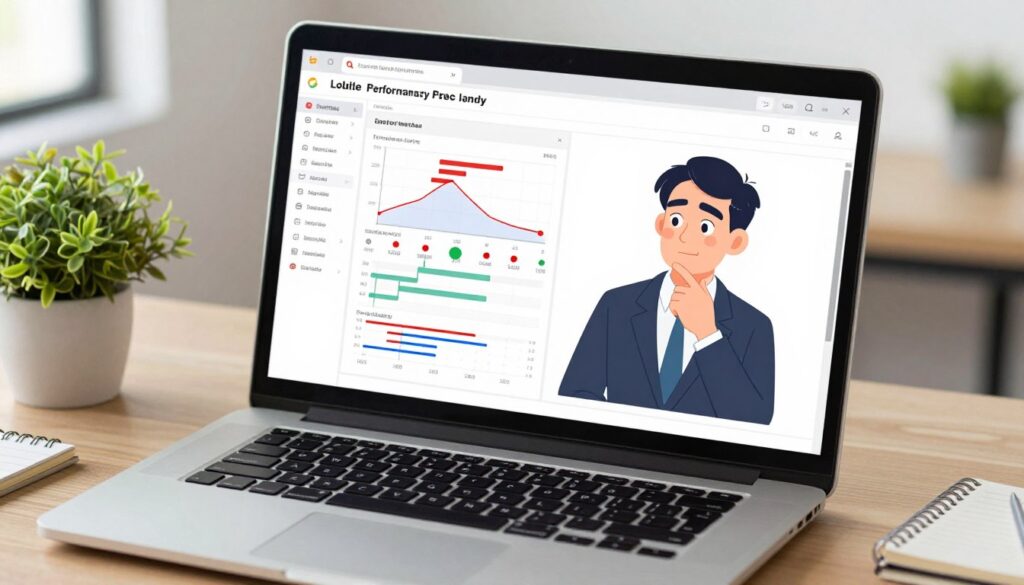
| Action | Goal | Quick tip |
|---|---|---|
| Scan Start/Duration/Status | Identify first failing run | Sort by Duration to spot outliers |
| Edit columns | Surface key trigger outputs | Add requester, attachments, contentType |
| Lightweight triage | Keep review scalable | Filter failures, inspect top outliers |
Connect to the system: a clear run-level view makes flow-level signals visible earlier, so teams intervene before stakeholders feel downstream impact. We recommend embedding this habit into weekly reviews.
Read errors and messages correctly so you fix the right cause
A clear read of an error message turns hours of guessing into minutes of targeted work.
Start at: My flows → select the failed flow → open the 28-day run history for the failed date. Then open the failed step (look for the red exclamation) and read the error message.
First, separate symptom from cause. A symptom is the visible error text; the cause is often a bad connection, missing resource, or wrong input. Confirm what inputs the action received at runtime before changing configuration.
Common codes and quick meanings
- 401 / 403 — authentication or access problem (update credentials).
- 400 / 404 — action configuration or missing resource (check URLs, IDs, fields).
- 500 / 502 — transient platform failure (retry or resubmit the run).
Trigger vs action: where to focus
If the run never started, diagnose the trigger. If the run began and stopped, inspect the failing action. This simple split speeds troubleshooting and prevents unnecessary changes.
“Errors are signals; interpret them precisely, then apply the smallest effective fix.”
| Step | Symptom | Likely cause | Quick fix |
|---|---|---|---|
| Open failed step | Red exclamation, error message | Authentication or config | Review message, check inputs, update connection |
| Compare runs | Different durations or outputs | Changed input or environment | Replay with known-good inputs |
| Transient errors | 500/502 failures | Platform or network | Retry/resubmit; monitor for recurrence |
One common example: a manager lookup action fails when directory data is missing. Validate upstream data assumptions, then resubmit with corrected inputs. Keep notes: time first failed, what happened, how to fix, and retry steps. This repair-style habit reduces repeat failures and builds team confidence.
Fix authentication and connection failures that stop progress tracking
A single expired credential can stop a flow and silence an entire data pipeline. Authentication errors—often shown as Unauthorized or codes 401/403—do more than slow work. They stop a run, hide outcomes, and erode trust in reporting.
Recognize common access patterns
Look for the words Unauthorized and the numeric codes 401 or 403 in the failed step. Treat these as identity or permission problems, not logic bugs. Repeated failures over time usually mean token or password expiry.
Update connections and resubmit
Follow steps to repair quickly:
- Open the failed run and note the error.
- Right pane → View Connections → locate the failing connection.
- Select Fix connection → verify credentials.
- Return to the run and resubmit to confirm success.
“Fixing credentials fast turns a system failure into a quick recovery—confidence follows clean runs.”
| Symptom | Likely cause | Immediate action |
|---|---|---|
| Unauthorized / 401 | Expired token or credential | Verify credentials, Fix connection, Resubmit |
| 403 | Permission or access change | Check account rights, update permissions, Resubmit |
| Repeated failures across runs | Policy or scheduled expiry | Schedule credential review, notify owners |
Prevent repeat issues by calendaring connection checks, tracking token expiry times, and naming owners so fixes don’t require hunting for an email. A short internal update (what happened / so what / now what) reduces duplicate troubleshooting and keeps the team aligned.
Keep the discipline: when connections are treated as first-class parts of the system, runs recover faster and reports stay credible.
Troubleshoot trigger problems that prevent runs from starting
A trigger that never fires creates an invisible break in the system; find that break first.
Start with a diagnostic fork: if no run appears, assume the trigger failed. Do not edit downstream actions until trigger health is confirmed.
When a trigger doesn’t fire: checks to isolate the problem
- Confirm the trigger registered events on the All runs page; look for “skipped” checks.
- Open Connections and repair any broken credentials or expired tokens.
- Verify admin mode, licensing status, and premium connector plan on the flow details page.
- Check for DLP policy messages—editing may reveal a policy violation that disables workflows.
Review trigger conditions and inputs for skipped runs
Inspect condition logic and sample inputs. A narrow condition can silently skip events. Replay or simulate an event to test the input and confirm the trigger evaluates true.
Check permissions and shared resources
Permissions are a common hidden cause. Verify mailbox and folder rights, site access, and shared resource identities. Document which mailbox, folder, or site the trigger expects to avoid guesswork.
“A non-firing trigger creates false confidence — no run history, no status. Make trigger checks routine.”
| Symptom | Likely cause | Immediate action |
|---|---|---|
| No runs listed | Trigger skipped or not registered | Check All runs → simulate event → inspect trigger log |
| Trigger error message | Broken connection or expired token | Open Connections → Repair → Resubmit |
| Disabled by org | DLP policy or admin mode | Review flow checker → consult admin → adjust policy |
| Silent skips | Permission or condition mismatch | Confirm mailbox/folder rights → tighten or relax conditions |
Handle delayed triggers, duplicated actions, and other run-time surprises
Runtime behavior that feels random usually traces back to trigger types, plan limits, or delivery semantics. Treat these as predictable system behaviors to design around, not mysterious failures.
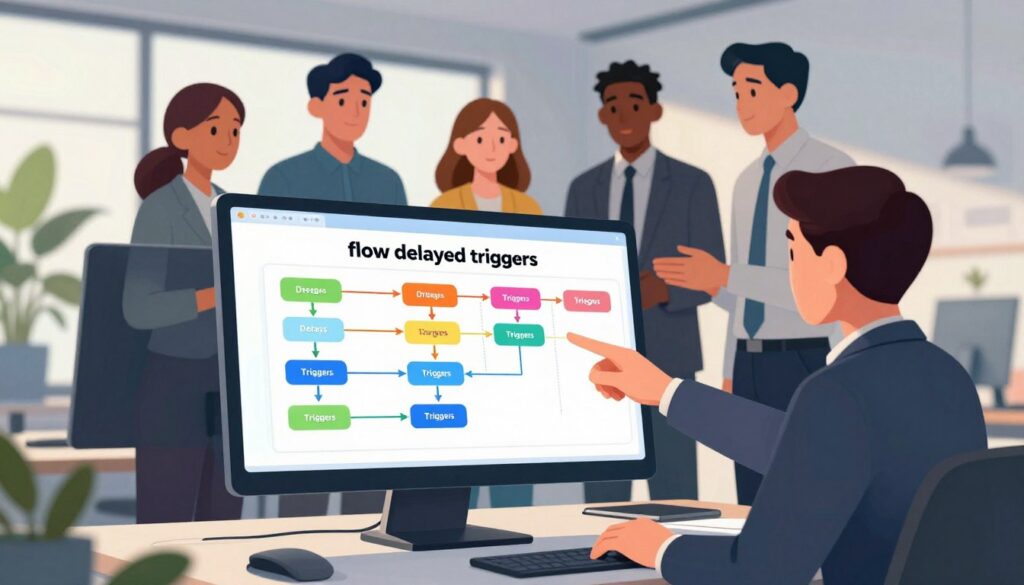
Polling vs. webhook triggers and replayed events
Polling triggers scan for pending items and can pick up older events after being re-enabled. That means turning a polling flow off and on may replay past items.
Webhook triggers register live callbacks and typically resume from new events after re-enable. Use webhooks when avoiding replay of historical events matters.
Wake-up frequency, throttling, and plan limits
Time to act varies by plan: free tiers may poll every 15 minutes; paid tiers poll more often. Expect different times for near-real-time needs.
Throttling can delay runs when connectors exceed rate limits. Test responsiveness, then reduce connector calls, split heavy flows, or upgrade licensing to lower delays.
Design for idempotency to prevent duplicate emails and records
Delivery often follows an “at-least-once” model. Duplicate actions are an expected risk—engineer safeguards.
- Check if a record exists before create.
- Enforce unique keys in Dataverse or database tables.
- Store a processed-event ID and skip if seen before.
Tip: log the run ID and a causal note when you resubmit; this gives stakeholders clear evidence of an issue and the corrective change. A short, factual note rebuilds trust faster than vague updates.
“Design expectations into the process: predictable behaviors are simpler to explain and quicker to fix.”
| Surprise | Cause | Practical response |
|---|---|---|
| Replayed items | Polling resume behavior | Use webhook or dedupe by event ID |
| Long trigger lag | Plan wake-up frequency / throttling | Test, reduce calls, split flow, or upgrade |
| Duplicate emails/records | At-least-once delivery | Idempotency checks, unique keys |
Turn progress data into updates people actually act on
Good updates turn raw logs into immediate choices, not more waiting. Use a simple reporting flow to convert data into decisions: state the facts, explain the impact, and propose a clear next step.
Use the “What happened, so what, now what” reporting flow
What happened: list facts and the supporting data.
So what: explain the impact on timelines, cost, or risk.
Now what: name the decision, owner, and the target time to act.
Share the right level of detail to reduce back-and-forth communication
Lead with the decision needed, then add just enough context. Offer a link to deeper logs for operators and a one-line trajectory for executives.
How to deliver bad news early without losing stakeholder trust
Be transparent: show evidence, state the risk, offer options, and commit to a checkpoint. Early, factual updates preserve credibility and speed repairs.
“Short, structured reports turn noisy data into decisive action.”
| Audience | Primary need | Report focus | Sample line |
|---|---|---|---|
| Executive | Trajectory and risk | High-level result and decision | “Duration up 40% — risk to SLA; approve hotfix or accept delay.” |
| Operator | Root cause and next actions | Error detail, steps, owner | “Failed step X; resubmit after fix; owner: ops team.” |
| Stakeholder | Impact on work | Timeline and owner | “Delay affects release; contingency plan set for Friday.” |
Example update: Duration increased 40% over last week; impact is missed SLA risk; next action is to repair the failing step, resubmit, and add an idempotency guard.
Each update should be a learning event for the process. We recommend short notes that improve the flow and reduce repeated explanations—so teams spend more time on results and less on repeating context.
Conclusion
FlowScholar Progress Tracking: See What’s Working, Fix What Isn’t distills one logic: define success, watch outcome-aligned signals, and use history to spot drift early.
Troubleshooting becomes a repeatable capability—not chaos. Build checks for runs, triggers, permissions, and authentication so repairs are fast and reliable.
Identify the exact run, step, or trigger, read error messages carefully, apply the smallest effective correction, then resubmit and confirm. Repeatable habits protect the system and reduce noise.
Leaders gain fewer surprises, faster decisions, and stronger trust when the tracking process evolves with the work and preserves safe reporting.
Learn more: explore this Education AI Tool and practical resources at https://www.flowscholar.com.
FAQ
Why does visibility into work often fail, and what does that cost teams?
Visibility breaks down when effort isn’t tied to clear outcomes. Teams spend time creating status updates that don’t reveal blockers or results, which slows decisions and increases rework. Focusing on a few leading indicators and clarifying success conditions reduces wasted effort and speeds delivery.
How do you avoid data overload and track the indicators that matter?
Start by identifying one or two metrics that map directly to outcomes—cycle time, success rate, and user-facing incidents, for example. Remove or automate signals that only measure activity. A concise dashboard and periodic review keep attention on the signals that predict impact.
What role does psychology play in honest status reporting?
People hide bad news when reporting feels punitive. Create a culture of blameless updates, standardize the cadence and format for reports, and reward early escalation. That reduces surprises and enables faster remediation.
How should a team define scope, success conditions, and “done” for tracking to work?
Define scope with clear boundaries, list measurable success conditions, and describe the acceptance criteria for “done.” Use those criteria in each milestone and tie metrics to them so progress reflects achieved outcomes, not just completed tasks.
What makes a milestone motivating and useful for next actions?
Useful milestones are time-bound, outcome-focused, and small enough to complete within a short cycle. They should produce a decision or deliverable that naturally informs the next step, reducing ambiguity and keeping momentum.
How do you choose metrics that map to outcomes rather than activity?
Prioritize measures like conversion lift, error rate, throughput, and customer satisfaction over counts of emails or completed tickets. Ask: “Does this metric change behavior or decisions?” If not, it’s likely an activity metric to drop.
Where can teams find status, results, and workflow signals in a single view?
Combine run history, current status columns, and key metrics into a single dashboard or page. Include filters for time range and status so users can quickly switch from a high-level summary to the exact runs behind anomalies.
How can time and history reveal what’s improving or slipping?
Trend lines on success rate, median duration, and frequency of retries show whether fixes stick. Compare equivalent time windows and annotate deployments or config changes to correlate causes with improvements or regressions.
How do you identify the exact run, page, or workflow step where problems begin?
Drill into run histories and sort by start time, duration, and status. Look for patterns such as repeated failures at the same step or spikes in duration that precede errors. That narrows the scope to the offending run or page.
What details in run history help pinpoint Start, Duration, and Status patterns?
Inspect timestamps for start and end, per-step durations, and status codes. Correlate those with user or system inputs at the same times to find race conditions, timeouts, or external dependency delays.
How do customized columns speed up troubleshooting?
Surface the fields you consult most—status, error summary, connector name, and last modified—so you don’t open every run. Custom columns let engineers scan for likely causes and act faster without losing context.
What to do when frequent runs make debugging time-consuming?
Aggregate similar failures, use sampling to inspect representative runs, and set filters by error type. Add tags or labels to group related runs and create automated alerts for new error clusters to reduce manual noise.
How should one read failed-step error messages to fix the right cause?
Open the failed step, capture the exact error string, and note the input values and connector involved. Match the message against known causes—authentication, quota, malformed data—before changing configuration to avoid misdirected fixes.
What are common error codes and their typical meanings?
401/403 often indicate authentication or permission issues; 429 signals rate limits; 500-series codes point to remote service failures. Use the code as a starting point, then check logs and connector health to confirm the root cause.
How do you separate trigger issues from action configuration issues?
Verify whether a run was created. If no run exists, investigate the trigger: conditions, connector permissions, and event delivery. If a run exists but fails at an action, inspect action inputs, mappings, and external API responses.
How can teams diagnose Unauthorized, 401, and 403 failures quickly?
Confirm the account or token in use, check token expiration, and validate the account’s permissions for the resource. Re-authenticate, then run a single test to verify the fix before resubmitting bulk runs.
What’s the correct sequence to update connections and resubmit a failed run?
First, update or reauthorize the connector; second, run a targeted test; third, resubmit the failed run once the test succeeds. Document the change and monitor subsequent runs to ensure stability.
How can expired passwords or tokens be prevented from breaking connections?
Use long-lived service accounts or OAuth refresh tokens where possible, set reminders before credential expiry, and centralize credential management. Implement monitoring that alerts on failed authentications early.
What checks isolate problems when a trigger doesn’t fire?
Confirm the source event occurred, check trigger conditions and filters, validate connector health, and review any debounce or deduplication settings that might block firing. Reproduce the event in a test environment if needed.
How do trigger conditions and inputs cause skipped runs?
Triggers often include conditions or field filters; if input values don’t match, the run is skipped. Inspect recent events to confirm their payloads and adjust conditions or provide fallbacks for variable input formats.
Why should permissions for mailboxes, folders, and shared resources be checked?
Triggers and actions access shared resources; missing read/write permissions block runs or cause partial failures. Ensure service accounts or connectors have explicit access to the required scopes and folders.
How do admin mode, licensing, and premium connector requirements affect triggers?
Some triggers require admin consent, specific licenses, or premium connector tiers. Verify account entitlements and admin settings before assuming a trigger is faulty, and document any license dependencies.
How can DLP policies block workflows and what can be done?
Data loss prevention rules may strip or block certain fields or destinations, causing failures. Coordinate with security teams to create safe exceptions, or modify workflows to avoid sensitive data paths.
Why do delayed triggers and duplicated actions occur at runtime?
Delays often come from polling frequency or throttling; duplicates come from retries and replayed events. Understand the trigger mechanism—polling versus webhooks—and design workflows for idempotency to tolerate repeats.
How do polling and webhooks differ, and why do old events replay?
Polling checks for changes on a schedule and can surface stale events when state changes late; webhooks push events immediately but rely on delivery guarantees. Replays happen when systems recover or when events are retried after transient failures.
What causes throttling and how does plan level affect wake-up frequency?
Throttling is enforced by API quotas or platform limits; higher-tier plans often get faster wake-up intervals and higher rate limits. Monitor throttling responses and consider batching or backoff strategies to reduce pressure.
How should workflows be designed for idempotency?
Ensure actions produce no unintended side effects when repeated—use unique request IDs, check for existing records before creating new ones, and make writes conditional so retries don’t duplicate data.
What is the “What happened, so what, now what” reporting flow?
Summarize the event (what happened), explain its impact (so what), and recommend next steps (now what). This structure makes updates actionable, reduces meetings, and helps stakeholders focus on decisions.
How do you share the right level of detail to cut back-and-forth communication?
Tailor reports: executives get the impact and recommended decisions; implementers get logs, steps to reproduce, and a proposed fix. Attach run links and minimal raw data so engineers can dive in when needed.
How should bad news be delivered early without losing stakeholder trust?
Communicate early with facts, the impact, and a clear remediation plan. Describe mitigations already in place and an estimated timeline for resolution. Consistent, transparent updates maintain trust even when outcomes are unfavorable.