
Many makers have felt the strain of juggling content, invoices, and growth numbers. This guide meets that anxiety head-on with practical steps and steady guidance that help turn scattered spreadsheets into clear, actionable views.
A dashboard is a visual snapshot of KPIs—revenue, expenses, profit, cash flow—that speeds decisions. Excel delivers deep calculations and charts; Google Sheets adds cloud collaboration; Power BI and Tableau offer advanced visuals with steeper learning curves.
ChatGPT acts as a prompt engine: it recommends which data to include, shows how to clean inputs with TRIM and CLEAN in Sheets, and suggests chart types. This is framed as an AI-assisted project that helps readers get started with a clear, step-by-step way to turn numbers into reports they can use to run their business.
Expect hands-on steps from metric definition to secure deployment. The article focuses on time saved, fewer manual errors, and better visibility—so the value is immediate and practical.
Key Takeaways
- Dashboards speed decisions by visualizing core KPIs.
- Choose tools by scope: Sheets for collaboration, Power BI for advanced visuals.
- AI helps map data, clean inputs, and suggest chart types.
- The guide walks through metrics, visuals, and secure deployment.
- Outcome: less manual work, clearer insights, faster decisions.
What creators gain from a GPT-based financial dashboard today
A smart prompt workflow shortens the path from raw ledgers to decision-ready visuals. For U.S. creators this means fewer manual steps and faster access to the numbers that matter.
Immediate benefits include quick insights, less repetitive work, and clearer information to guide pricing, ad spend, or hiring.
Chat-based prompts suggest data schemas, recommend TRIM and CLEAN tips in Sheets, and pick chart types that surface trends. That compresses setup time from days into hours.
- Turn scattered numbers into at-a-glance information that supports informed decisions.
- Let AI propose the initial structure and prompts that surface priority metrics.
- Share via Google Sheets or OneDrive with permission controls for team access.
- Reduce manual entry, recategorizing, and reformatting so creators focus on content.
Which KPIs reflect cash-flow risk for a creator?
Less cognitive load yields better business choices: smarter pricing, clearer sponsorship timing, and faster responses to payout shifts.
Understanding financial dashboards and core concepts
A well-designed snapshot turns complex numbers into clear signals that demand quick action.
Dashboards vs. reports: A dashboard gives a quick-scan view of current status so teams can act fast. Reports dig into numbers, context, and analysis for deeper understanding and archival review.
Common elements and visual types
KPI cards summarize revenue, expenses, profit, and cash flow. Charts and graphs reveal patterns and trends across months and campaigns.
Bar visuals highlight comparisons; line visuals show time-series trends. Good design uses limited palettes, consistent scales, and grouped sections to lower cognitive load.
“Clarity in information builds trust; messy inputs build doubt.”
| Component | Purpose | Best chart types | Typical use |
|---|---|---|---|
| KPI cards | Quick status | None (cards) | Daily monitoring |
| Category breakdown | Compare streams | Bar, pie | Campaign review |
| Time trends | Show growth/decline | Line, area | Monthly analysis |
| Deep report | Explain why | Tables, charts | Quarterly review |
Keep data hygiene first: standardize dates, clean categories, and validate numbers. Over years teams move from Sheets to tools like Power BI or Tableau as needs grow. Start simple; add complexity as the business demands.
Create a GPT-based financial dashboard for creators
Use ChatGPT to turn rough ledgers into practice-ready CSVs and precise chart plans.
How ChatGPT help streamlines the process: The assistant can generate a 50-record CSV example that mirrors online course sales. It lists KPIs to track, suggests visuals, and writes step-by-step build instructions for Power BI or Sheets.
Teams ask for cleanup formulas like TRIM and CLEAN, plus validation rules. That reduces rework and speeds iteration.
Prompts to get started and clarify requirements
- Prompt the model to define KPIs, propose layout, and outline the build sequence to map your process.
- Request a 50-record CSV example with fields: date, product, channel, discount, gross, fees, net.
- Ask for a checklist of tables, column types, and validation rules to prevent surprises.
- Request chart recommendations by metric—line for trends, bar for comparisons—and the reasoning behind each choice.
| Component | Purpose | Recommended chart | Sample fields |
|---|---|---|---|
| KPI cards | Top-line quick view | Cards / single numbers | Date, net revenue, gross margin |
| Revenue by channel | Compare streams | Bar chart | Channel, gross, discounts |
| Trend over time | Show growth and seasonality | Line chart | Date, net revenue, refunds |
| Details table | Row-level validation | Table | Order ID, date, product, net |
“Treat the assistant as a structured-thinking tool: validate outputs against context.”
Final tip: Use iterative prompts to refine scope—ask, “What’s missing in a creator cash-flow view?”—and keep team definitions aligned. Treat the model as an accelerant, not a replacement for judgment.
Map your creator data: metrics, revenue, expenses, and cash flow
Mapping raw records into a clear schema turns scattered ledgers into decision-ready views. Define which metrics matter and map each transaction to a single, consistent record type.
Income streams
List primary sources: AdSense, brand sponsorships, affiliate commissions, digital products, and memberships. Link each source to fields: date, channel, gross, fees, and net so revenue is reconcilable across tables.
Expense tracking
Standardize categories—tools, production, ads, taxes, contractors—so rollups match month to month. Tag each expense with date, vendor, amount, and category to make totals reliable.
Cash flow and runway
Model timing: track payout cycles, net terms, tax withholdings, and refunds. This lets teams spot liquidity risk and plan runway before numbers become urgent.
Historical data and trends
Capture past months to surface seasonality, month-over-month growth, and campaign cycles. Use chatgpt help to review category trees, suggest missing fields, and add validation lists.
Data health: add checks for duplicates, negative values, and miscategorized items. Keep the schema flexible so new income or expense lines do not break existing views in the dashboard.
Choosing tools: Sheets, Excel, Power BI, and tools like Tableau
Choosing the right mix of spreadsheets and BI tools shapes how fast teams turn raw numbers into insight.
Google Sheets speeds setup and collaboration. It is ideal for small teams that need a shared link, simple permissions, and quick iteration.
Excel excels at heavy calculations, custom measures, and offline work. Use it when models require advanced formulas or complex charting.
Power BI: scalable visualization and analysis
Power BI supports centralized data models, relationships, and fast slicers. It scales with datasets and stakeholder reporting needs.
Tableau and similar tools offer sophisticated visuals and interaction, but expect a steeper learning curve and higher cost.
When to adopt specialized tools and connectors
Evaluate connectors (ad platforms, commerce systems) and whether a tool reduces manual CSV exports. Factor in licensing, training, and maintenance when planning total cost of ownership.
- Small team + low complexity → Sheets (fast, collaborative).
- Medium complexity with modeling needs → Excel (powerful formulas).
- High scale and stakeholder reporting → Power BI or Tableau (governed visualization).
| Scenario | Best fit | Why |
|---|---|---|
| Rapid prototyping | Google Sheets | Shareable links, simple permissions |
| Complex models | Excel | Advanced formulas, offline control |
| Enterprise reporting | Power BI / Tableau | Scalable models, connectors, governance |
“Use ChatGPT to weigh features against team skill, data volume, and budget; treat its advice as a comparative lens, not a final decision.”
Designing the dashboard layout for clarity and speed
Design choices should prioritize speed—show the most critical numbers at once.
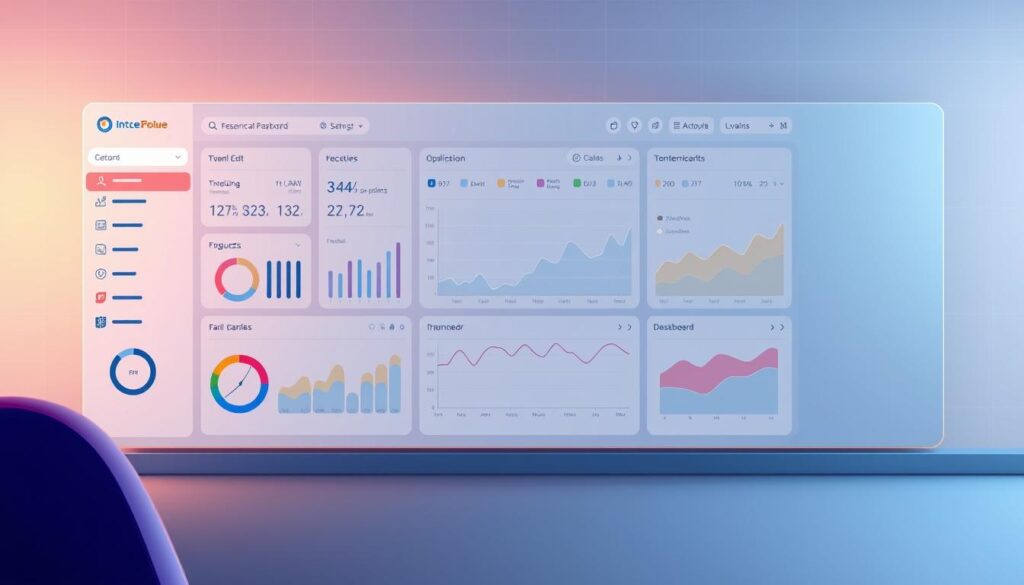
Information architecture begins with a clear top row. Place KPI cards for revenue, expenses, profit, and cash flow where eyes land first. This anchors the view and answers immediate questions.
Group sections by theme: revenue performance, expense breakdowns, and trend charts. Organize each column so users do not hunt for context or numbers.
Visual hierarchy, color, and accessibility
Use larger typography for section headers and consistent scales across charts. Keep palettes limited to reduce clutter; green for gains and red for declines helps quick reading.
Make interactive features discoverable: slicers on the left, clear tooltips, and icons that reinforce meaning. Show data validation and a short glossary to avoid misinterpretation.
- Top-row KPI cards anchor the page and speed decisions.
- One or two charts per section maintain scan-ability.
- Responsive grids ensure consistent behavior when embedded or shared.
- Ask ChatGPT to critique wireframes and simplify layouts.
| Section | Purpose | Recommended element |
|---|---|---|
| Top KPIs | Immediate status | KPI cards (single numbers) |
| Revenue | Performance breakdown | Bar charts, filters |
| Expenses | Cost visibility | Category table, small charts |
| Trends | Seasonality and growth | Line charts, slicers |
Align layout to business questions first: charts exist to answer specific needs, not to fill space. This way the interface delivers clear information and relevant features that help teams act on their data.
Selecting the right charts and graphs for your data
Pick visuals that match the question you need to answer, not the tool you prefer. Start by naming the decision you want to support, then choose the visual type that makes that answer obvious.
Bar charts compare categories—course revenue, sponsor returns, or format performance. Use sorted bars and uniform scales so comparisons are instant.
Line charts reveal trends, seasonality, and growth. Plot monthly revenue or expense drift to show change over time; avoid too many lines on one chart.
Pie/donut and heat maps: pies work for simple proportions; avoid them with many slices. Heat maps highlight density—time-of-day engagement or expense intensity by month.
- Keep labels clear and legends concise.
- Drop 3D effects; they distract from the story.
- Use small multiples to compare streams without crowding one view.
- Map revenue and expenses with a single currency format and fixed decimals.
“Match chart types to the business question so decisions are supported, not obscured.”
| Question | Best visual | When to use | Quick tip |
|---|---|---|---|
| Compare channels | Bar charts | Course, sponsor, product breakdowns | Sort bars desc.; keep same scale |
| Show trend | Line chart | Monthly revenue or expense drift | Limit series; highlight moving average |
| Proportion | Pie / Donut | Few categories only | Switch to stacked bar if many slices |
| Density / timing | Heat map | Engagement by hour or expense by month | Use consistent color scale |
Preparing and cleaning data: from numbers to insights
Start by treating raw exports as living files—remove noise so charts tell the right story.
Sanitize text fields first. Run TRIM to strip extra spaces and CLEAN to remove hidden characters that break joins and filters. Use simple formulas in Sheets or Excel so the operation is repeatable.
Next, standardize dates into an ISO-like YYYY-MM-DD format. That format keeps time-series work predictable and prevents misaligned months in reports.
Validation and normalization
Lock categories with dropdown lists to avoid duplicates like “Ad Spend,” “Ad-Spend,” and “Ads.” Add audit columns (created_at, updated_at, source) to trace provenance.
Order of operations
- Import raw exports.
- Clean text and normalize dates.
- Validate categories and run reconciles.
- Enrich with calculations, then visualize.
Configure dynamic ranges or queries so visuals refresh when new rows arrive. Run spot checks on numbers after transforms to confirm currency, sign convention, and totals before sharing with stakeholders.
| Action | Why it matters | Quick check |
|---|---|---|
| TRIM & CLEAN | Prevents broken joins and wrong filters | Search for leading/trailing spaces |
| Date standardization | Ensures accurate time-series charts | Sort by date and verify month totals |
| Validation lists | Keeps categories consistent | Count unique category labels |
| Dynamic ranges | Auto-updates visuals as rows add | Append a test row and refresh |
Final step: Package a minimal test dataset and run the full process in order. This step-by-step flow reduces rework and turns raw numbers into reliable information the business can use.
Using ChatGPT prompts to build dashboards step by step
Start with a focused prompt that maps your key metrics and expected outputs. That single instruction frames the scope, output format, and validation checks the team will use.
Prompt templates that define KPIs and measures
Sample prompt: “Provide a 50-record CSV with fields: Order_ID, Date, Course_Name, Price, Discount, Total_Amount. Then list charts to identify the best-selling course and map X/Y axes. Finally, give Power BI steps to build a bar chart with Course_Name on X and SUM(Total_Amount) on Y.”
Generate dummy data and prototype layouts
Ask the model to output CSV text so you can paste into Sheets or Excel. Use that example to test card sizing, chart density, and responsiveness.
Turn messy inputs into analysis-ready tables
Provide messy rows and request a cleaning script. Include TRIM, CLEAN, date format casts, and type checks in the prompt. Ask for DAX-style or formula measures: profit, margin, ARPU, run-rate.
- Define scope and KPIs with a clear prompt.
- Generate sample data and validate layouts.
- Request cleaning formulas and measures.
- Get step-by-step build actions for Power BI or Sheets.
Use iterative prompts—then save working prompts in a shared doc. For a quick Excel primer, see how to make dashboards in Excel using for hands-on examples and reproducible steps.
Building in Power BI or spreadsheets: practical workflow
Start with structure, then build visuals that answer real questions.
Start by mapping tables and relationships so visuals rely on a clean, consistent model. Define three core tables: revenue, expenses, and a calendar. That model powers reliable reports and reduces surprises when numbers refresh.
Power BI: assembling visuals, filters, and slicers
Assemble the view by placing KPI cards for revenue, expenses, profit, and cash flow at the top. Add slicers for date, stream, and category to keep interactivity clear.
For a bar visual, set Course_Name on the X-Axis and Total_Amount (sum) on the Y-Axis. Configure interactions so slicers filter dependent visuals without breaking drill paths.
Test behavior: confirm slicers, drill-through, and tooltip content. Keep gridlines minimal and labels precise to improve scan-ability.
Sheets/Excel: pivot tables, bar charts, and dynamic ranges
In Sheets or Excel, start with pivot tables: revenue by stream and expenses by category. Use dynamic named ranges so charts auto-extend as new rows arrive.
Insert bar charts from pivot outputs and standardize formatting—consistent units, decimals, and color palettes. Validate totals against source tables to ensure parity across reports.
- Connect data, build the model, then assemble visuals.
- Format charts with clear labels and informative tooltips.
- Test refresh, reconcile numbers, and document the step flow in project notes.
| Stage | Action | Why it matters |
|---|---|---|
| Model | Revenue, expenses, calendar tables | Enables correct joins and time intelligence |
| Build | KPI cards, bar chart (Course_Name vs Total_Amount), pivot tables | Delivers quick insights and comparatives |
| Polish | Slicers, interactions, consistent formatting | Improves usability and trust in numbers |
| Ship | Validate, document, iterate using templates | Speeds future updates and team handoffs |
“Start with a clear model—good visuals follow reliable data.”
Integrating AI for insights, trends, and predictive analysis
Automated detection highlights sudden dips or spikes and pairs those signals with plausible explanations. This section shows how to turn alerts into action, and how forecasts and scenarios guide operational choices.
Anomaly detection and questions to ask your data
Enable anomaly detection to flag irregular daily revenue or sudden expense surges. When a signal appears, ask targeted questions: “Which streams deviated from trends?” or “Did a promo change net margin?”
Forecasting revenue, expenses, and cash flow with historical data
Use historical data to train a simple model that forecasts next month’s revenue, expected expenses, and cash flow runway. Start with built-in forecasting in your tool and validate against seasonality.
Scenario modeling to guide informed decisions
Run scenarios to test pricing shifts, ad spend, or posting cadence. Tie outcomes to decisions: invest, renegotiate rates, or delay spending. Store insights in a notes panel so observations persist with the dashboard.
| Use | Action | Result |
|---|---|---|
| Anomaly detection | Flag outliers in daily data | Faster investigation |
| Forecasting | Apply historical data model | Estimate revenue & flow |
| Scenario tests | Adjust price or budget | Projected profit & liquidity |
Testing, deploying, and maintaining your dashboard
Staged release reduces risk and speeds useful feedback.
Start with end-to-end tests. Validate data connections, refresh schedules, and calculated fields. Confirm cross-filter behavior and that charts update automatically when rows change.
Run reconcile checks: totals, currency signs, and sample order rows. Keep test records small so failures are visible and quick to fix.
User feedback loops to refine features and layout
Invite a small group to pilot the view. Observe where users hesitate and note confusing labels or hidden features.
Iterate fast: prioritize changes with the highest impact, then run another short test cycle. Keep a backlog that tracks requested enhancements as a project list.
Sharing, permissions, and security for sensitive information
Share reports via OneDrive or Google links with tiered permissions. Encrypt sensitive columns and restrict exports when possible.
Document who has edit rights and enforce an approval step before broad access. This protects information and preserves trust.
Update cadence, versioning, and ongoing optimization
Define an update cadence aligned to payout cycles—weekly for short-term views, monthly for archival reports.
- Use version tags and release notes so regressions are traceable.
- Maintain a checklist: data source health, row counts, refresh time, and error logs.
- Follow deployment order: dev → test → production to avoid accidental disruption.
| Action | Why it matters | Quick check |
|---|---|---|
| End-to-end test | Ensures reliable refresh and correct visuals | Append a test row and confirm updates |
| User pilot | Refines features and layout based on use | Collect task completion times and confusion points |
| Version control | Prevents regressions and documents changes | Tag releases and keep release notes |
“Test in order and gather real feedback; small loops lead to resilient reports.”
Conclusion
, The end result is a working view that turns messy exports into clear metrics you can act on.
With structure, automated cleaning, targeted visuals, and solid testing, anyone can stand up a usable dashboard that supports daily decisions. Start with a small prototype, validate numbers, then link live sources when confident.
The business impact is direct: clearer visibility into revenue, expenses, and runway improves speed and quality of choices. Years of best practices are distilled into repeatable prompts and steps so teams need not hire an expert to begin.
Integrating AI accelerates the build, guides chart selection, and surfaces forecasts—those benefits compound as the view matures. Iterate, govern, and document the flow; the way forward is practical, scalable, and within reach.
FAQ
What can a GPT-powered financial dashboard do for a creator’s business?
It centralizes income, expenses, and cash-flow data, surface key metrics, and automates routine analysis. Using AI, the dashboard summarizes trends, flags anomalies, and produces plain-language insights so creators spend less time on spreadsheets and more on growth.
Which core metrics should creators track first?
Start with revenue by stream (ads, sponsorships, affiliates, products, memberships), gross margin, net income, monthly recurring revenue (if applicable), customer acquisition cost, lifetime value, burn rate, and runway. These KPIs reveal health and sustainability at a glance.
How does ChatGPT accelerate dashboard building?
ChatGPT helps define requirements, suggest KPI formulas, draft SQL or sheet formulas, and generate visualization recommendations. It can produce prompt templates, mock data for prototypes, and step-by-step build instructions to reduce trial-and-error.
What tools work best for creators on a budget?
Google Sheets and Microsoft Excel are ideal for early-stage dashboards: low cost, fast to iterate, and familiar. They support pivot tables, dynamic ranges, and basic charts. For more scale, Power BI or Tableau offer stronger connectors and advanced visuals.
When should a creator move from spreadsheets to Power BI or Tableau?
Consider upgrading when data volume grows, you need automated connectors (banking, ad platforms), require role-based access, or demand more advanced analytics like forecasting and anomaly detection. These platforms scale visualization and governance.
Which chart types work best for typical creator data?
Use bar charts for categorical comparisons (sponsors, products), line charts for time-series trends and seasonality, stacked bars for revenue composition, and heat maps for engagement patterns. Avoid unnecessary pie charts when categories exceed four.
How should creators clean and prepare historical data?
Standardize date formats, normalize income and expense categories, remove duplicates, and use validation rules. In Sheets/Excel use functions like TRIM and CLEAN; in ETL tools apply mapping rules so visuals reflect accurate trends over time.
What prompts help generate dashboard requirements with ChatGPT?
Ask ChatGPT to: list essential KPIs for a specific creator niche, map data sources and required fields, produce sheet formulas for each KPI, and recommend chart layouts by priority. Include sample data ranges and desired update cadence for precise output.
Can AI provide forecasts and scenario modeling for creators?
Yes—AI can fit simple time-series models to historical revenue and expense data, generate short-term forecasts, and simulate scenarios (best/worst cases). Pair forecasts with sensitivity analysis to test assumptions and plan runway.
How do creators handle sensitive financial data and permissions?
Use role-based access in Power BI or protected ranges in Sheets. Restrict exports, enable two-factor authentication, and anonymize data where possible. Follow least-privilege principles and audit access regularly to protect earnings and tax information.
What is the recommended dashboard layout for fast decision-making?
Place high-impact KPI cards and month-over-month trends at the top, followed by revenue breakdowns, expense composition, cash-flow runway, and recent anomalies. Use consistent color coding, clear labels, and accessible fonts to reduce cognitive load.
How often should creators update and review their dashboard?
Update frequency depends on cash velocity: weekly for active creators with frequent transactions; monthly for steady revenue streams. Schedule a monthly review to assess trends and a quarterly planning session for strategy and forecasting.
What common mistakes should creators avoid when building dashboards?
Avoid cluttering screens with low-value charts, mixing unstandardized categories, and relying on manual copy-paste workflows. Also avoid overfitting forecasts to short-term spikes; instead prioritize clean data and repeatable automation.
Which integrations and connectors matter most for creator finances?
Connectors for payment processors (Stripe, PayPal), ad platforms (YouTube, TikTok, Facebook Ads), affiliate networks, bank statements, and invoicing tools streamline reconciliation. Choose connectors that support scheduling and incremental refresh.
How can creators validate that insights from AI are reliable?
Cross-check AI-generated explanations with source data, inspect underlying formulas or model assumptions, and test predictions against holdout data. Treat AI output as a decision support tool—not an unquestionable authority—and refine prompts iteratively.