At times, a simple metric can change how a leader views a product. A single conversion rate can turn a guess into a plan. This clarity often starts with good google analytics tracking.
This guide is like a mentor. It’s clear, practical, and focused on results. It helps ambitious people and entrepreneurs set up google analytics easily. They learn to use modern GA4 practices and Google Tag Manager (GTM).
First, create a GA4 property and data stream. Then, install the tracking tag (Measurement ID) via Google Tag Manager. Use DebugView and GTM Preview to verify, then publish and watch real-time reports.
To begin, go to Admin > Create Property. Choose your country, time zone, and currency. Select your business goals and click Create.
Next, set up a Web data stream. Enter your website URL and name. Enable Enhanced Measurement to track page views and more. Copy the Measurement ID for GTM setup.
In Google Tag Manager, create a new Google Tag. Paste the Measurement ID and set it to fire on Initialization – All Pages. Use GTM Preview to test and verify events in DebugView. When tests pass, publish the container and watch real-time reports.
For more tracking tips, check out this tutorial from MeasureSchool: google analytics tracking techniques.
Key Takeaways
- Create a GA4 property in Admin > Create Property and set country, time zone, and currency.
- Configure a Web data stream and enable Enhanced Measurement to capture core events automatically.
- Copy the Measurement ID and add it to Google Tag Manager as a tag firing on Initialization.
- Use GTM Preview and GA4 DebugView to verify the GA4 installation before publishing.
- Publish the GTM container, then monitor real-time reports to confirm successful google analytics integration.
Introduction to Google Analytics Tracking
Google Analytics is now key for teams wanting to understand user behavior. It helps marketers and developers see which pages are popular. It also shows which actions lead to sales.
What is Google Analytics?
Google Analytics 4 is a new analytics tool. It tracks every action, like page views and clicks, as events. It has a new look and a better way to track data.
GA4 uses a new way to track actions. It uses event names and flexible parameters. You can add details like product name to track user actions better.
Benefits of Using Google Analytics
Google Analytics helps teams see how well content works. It tracks things like scroll depth and video plays. This shows what content users like and what needs work.
It also shows where users struggle. Low navigation and weak CTAs are clear. This helps fix problems to keep users engaged.
It makes it easier to see how well marketing works. It shows how actions like newsletter signups relate to marketing efforts. This helps see the value of marketing.
It also helps tech teams. It tracks page speed and timing. This helps engineers improve website performance.
Key Features of Google Analytics
Enhanced Measurement tracks important actions automatically. It includes page views and scroll depth. This makes setup faster and tracks more.
It also tracks basic actions like first visit and session start. This gives a good starting point without needing to tag everything.
Reports and Explorations offer flexible analysis. They include detailed views and real-time data. The dashboard makes it easy to see these insights.
GA4 has different types of events. It has automatically tracked, enhanced, and custom events. This helps know what to track and what to customize.
Debugging tools help fix issues quickly. They include a Chrome extension and Preview mode. These tools make it easier to test and fix problems.
| Feature | What it Tracks | Why it Matters |
|---|---|---|
| Enhanced Measurement | page_view, scroll, outbound_click, site_search, file_download, video events | Captures common interactions automatically; speeds setup and improves baseline coverage |
| Event Model (GA4) | event_name + parameters (custom context like product_name) | Offers flexible, detailed context for each interaction; replaces Category/Action/Label |
| Reports & Explorations | Snapshot, Organic Search, Audience, Path, Realtime | Enables deep analysis and hypothesis testing for content and marketing |
| Debugging Tools | GA Debugger, debug_mode, GTM Preview, DebugView | Speeds troubleshooting and validates google analytics tracking during development |
| Custom Events & Parameters | Custom event names and parameters like annual_revenue | Captures business-specific signals for better segmentation and reporting |
| Google Analytics Reporting | Pre-built and custom reports across acquisition, engagement, and conversions | Transforms raw events into actionable insights; supports executive dashboards |
Setting Up Google Analytics
Setting up Google Analytics is easy. Just follow a few steps and check if it’s working. This guide will help you create an account and add the tracking code.
Creating a Google Analytics Account
First, go to Admin and click Create Property. Choose a name for your property, like your website or company. Then, pick your country, time zone, and currency.
Answer some questions about your business. Choose your baseline reports. Then, click Create to start with GA4.
Next, create a Web data stream in your new property. Enter your website’s full URL, like https://www.example.com. Give it a stream name. Enhanced Measurement is on by default; you can turn it off if needed.
Know about data streams: one GA4 property can have many streams for web and mobile apps. Most sites use just one web stream. This makes reporting easy and supports tracking on different platforms if needed.
Installing Tracking Code on Your Website
Use Google Tag Manager to install the tracking code. GTM makes it easy to add tags without changing code often. This saves time and makes things more flexible.
In GTM, open your container, go to Tags, and create a New tag. Choose Google Analytics: GA4 Configuration. Paste in the Measurement ID from your GA4 data stream.
Set Triggering to Initialization – All Pages. This makes sure the tag works on every page.
Test in GTM Preview mode to see if the tag works. Use GA4 DebugView to check events. Publish the container when everything looks good.
If GTM is not an option, add gtag.js to your templates. Include the Measurement ID in the script.
Turn on DebugView in GA4 to check things out. Use the Google Tag Manager preview, the GA Debugger extension, or send events with debug_mode. Look at events and parameters to make sure they’re right. Sometimes, there might be a delay in DebugView.
After publishing, check Reports > Realtime. Look at incoming events, user locations, traffic sources, and popular events. Keep checking to make sure the tracking code is working right after you set up GA4 and Google Tag Manager.
Understanding Google Analytics Dashboard
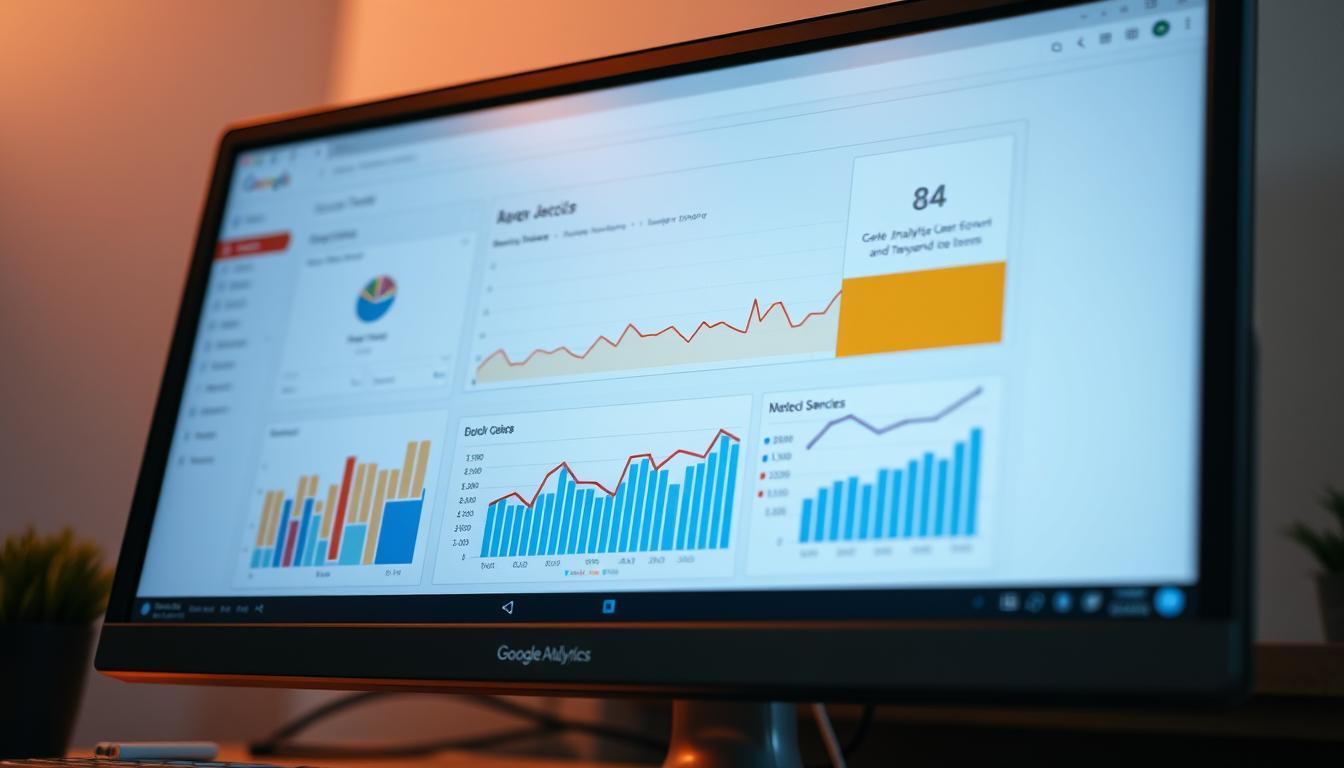
The Google Analytics dashboard gives a quick look at how your site is doing. It has a simple layout on the left. You can easily switch from a quick report to deeper analysis.
Overview of the dashboard interface
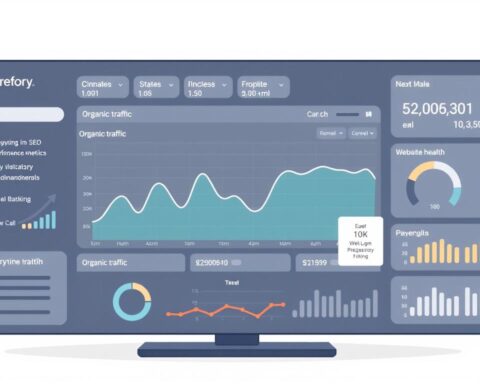
The Reports area shows a snapshot of your site’s traffic. It highlights where visitors come from and organic search trends. This helps SEO teams see how well their efforts are doing.
Key metrics and reports
Acquisition reports help track where visitors come from. You can see how well organic search is doing. Engagement metrics show how long visitors stay and what they do on your site.
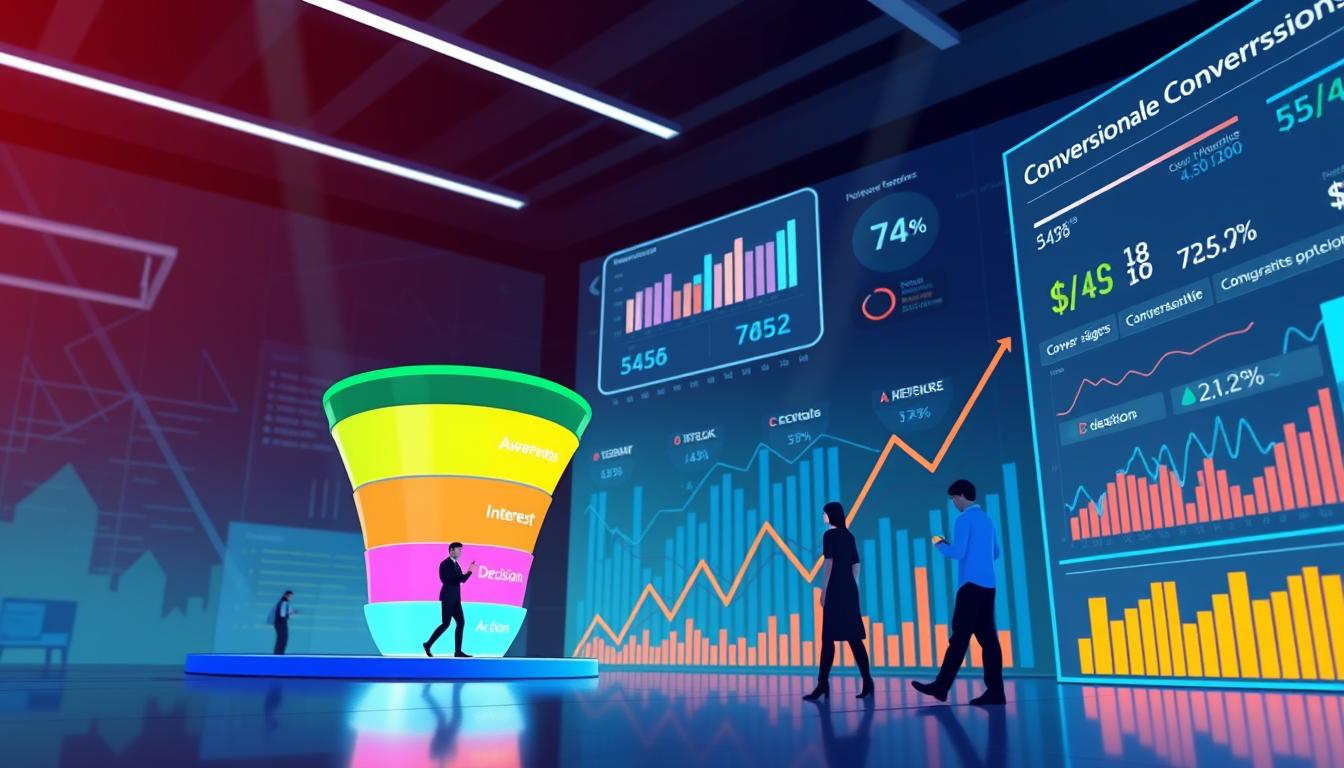
Conversions are important in GA4. Mark key actions like form submissions or purchases. This helps track how well your site is working.
Customizing your dashboard
You can make custom Explorations in Explore. This lets you create new views or analyses. Use custom dimensions to get more detailed data.
For a bigger view, build Looker Studio dashboards. They make your data easy to understand for everyone. This helps make decisions based on your data.
| Feature | Where to Find It | Primary Use |
|---|---|---|
| Report Snapshot | Reports > Snapshot | Quick view of traffic sources, organic trends, and traffic mix for fast SEO checks |
| Realtime | Reports > Realtime | Live event stream and individual user snapshot to debug journeys and campaigns |
| Acquisition / Organic Search | Reports > Acquisition | Track organic traffic performance; compare segments and landing pages |
| Engagement Metrics | Reports > Engagement | Measure session duration, engagement time, scroll depth, and media interactions |
| Conversions / Events | Configure > Events / Reports > Conversions | Define business-critical events as conversions to measure ROI and funnels |
| Path Exploration | Explore > Path exploration | Visualize user journeys from landing page to conversion; identify drop-offs |
| Device Reports | Audience > Devices | Understand cross-device behavior to prioritize responsive design and fixes |
| Custom Explorations | Explore | Build tailored analyses and UA-style reports for advanced google analytics reporting |
| Looker Studio Dashboards | External (Looker Studio) | Visualize GA4 reports and create executive-ready dashboards for SEO and conversions |
Learning About Tracking Events
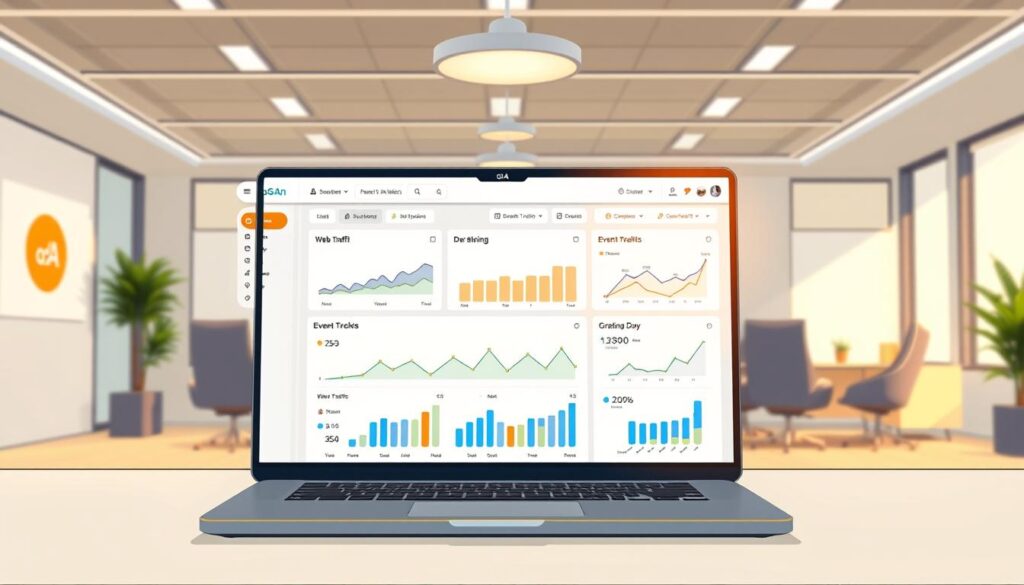
Events are key in modern analytics. In GA4, every action is an event with a name and optional details. This way, things like pageviews and clicks are tracked well.
GA4 doesn’t use the old Category/Action/Label model. Instead, users choose event names and add details. There are four types of events: automatic, enhanced, recommended, and custom.
What are Events in Google Analytics?
An event is when a user does something like start a session or submit a form. Some events, like first_visit, are tracked automatically. Enhanced Measurement tracks more, like page views and downloads.
Examples of Common Events
Marketers track many things, like when someone adds something to cart or signs up. For videos, they need special settings. Custom events track unique actions on a site.
Setting Up Event Tracking
First, decide what events are most important. Then, make a plan for how to name and track them. Use a spreadsheet to keep everything organized.
To track events, use Google Tag Manager. Create a tag for each event and set up triggers. Check your work in Preview and DebugView before you publish.
After setting up, check your work in Realtime reports. Make sure you’re not hitting limits. Then, you can publish your changes.
For more help with Google Tag Manager, check out this guide: analytics implementation with Google Tag Manager.
Exploring Google Analytics Goals
Setting measurable targets turns data into decisions. Google Analytics goals link site behavior with business outcomes. In GA4, goals are clear and actionable as key events or conversions.
Importance of tracking milestones
Goals show how organic search and paid channels lead to real results. Marking an event as a conversion links traffic sources to outcomes. This proves SEO and campaign ROI, guiding budget shifts.
Conversion tracking refines content and keyword plans. Teams see which landing pages and paths generate value. Reporting shows patterns to scale successful pages and pause low-performing ones.
How to create goals as conversions
Start by picking interactions to treat as key events. These include purchases, sign-ups, and downloads. These choices shape the quality of your google analytics reporting.
In GA4 Admin, go to Configure > Events. Find the event_name to promote and toggle Mark as conversion. For custom needs, create a new event: Admin > Events > Create event, then define matching conditions.
Validate every new conversion in DebugView and Realtime. This ensures the event fires before relying on reports. Use Explorations and Path analysis to inspect sequences and find funnel friction.
Below is a compact checklist to build reliable goals and interpret outcomes.
| Step | Action | Why it matters |
|---|---|---|
| Define | List desired interactions (purchase, sign-up, download) | Sets clear success criteria for google analytics goals |
| Create | Admin > Events > Create event with precise matching | Generates reliable event_names for tracking |
| Mark | Toggle Mark as conversion for chosen event_name | Transforms events into conversions GA4 for reporting |
| Validate | Use DebugView and Realtime to confirm firing | Prevents false positives in google analytics reporting |
| Analyze | Run Explorations and Path analysis to view funnels | Reveals which channels and pages drive key events |
Using UTM Parameters for Tracking
UTM parameters make links send data to analytics tools. They help teams see how messages, channels, and creatives work. Using them right keeps data clean and helps track well.
What are UTM parameters?
UTM parameters are special tags in URLs. They add context to links. When someone clicks a link with these tags, tools like GA4 know where it came from. This makes tracking easier and reports clearer.
How to Create UTM Links
First, pick a base URL. Then add the five main UTM tags. You can use Google’s Campaign URL Builder or a spreadsheet. Make sure to use the right names for each tag.
Use utm_source for where the link came from, like email. Use utm_medium for how it was shared, like social media. Name your campaign with utm_campaign, like summer_launch. Use utm_term for search terms and utm_content for different versions of a link.
Make sure to encode URLs right and test links before sharing. Mistakes can mess up tracking. Keeping names simple helps compare different campaigns better.
Analyzing UTM Reports in Google Analytics
In GA4, look at Acquisition reports to see UTM data. You can compare different campaigns to see what works best. This helps teams understand how campaigns affect sales and user actions.
Compare paid and organic efforts to see what brings in more customers. Use Looker Studio to mix UTM data with website stats. This helps make better decisions and shows clear results.
| UTM Field | Purpose | Example Value | Best Practice |
|---|---|---|---|
| utm_source | Identifies the referrer | newsletter | Use the channel or publisher name; keep lowercase |
| utm_medium | Defines the marketing medium | Standardize common mediums like email, cpc, social | |
| utm_campaign | Labels the campaign | summer_launch | Be descriptive and date-stamped when needed |
| utm_term | Tracks paid search keywords | running+shoes | Use for paid search only; URL-encode spaces |
| utm_content | Distinguishes creatives or tests | cta_variant_b | Label creatives and A/B test versions clearly |
Analyzing Audience Insights
Knowing who visits a site makes analytics useful. The google analytics dashboard shows who visits, what devices they use, and how they engage. This helps teams create content and improve user experience.
Understanding Audience Reports
Audience reports in GA4 show age, gender, interests, and more. They also show new versus returning users. Session data shows how visitors move and what catches their attention.
Device reports help with mobile versus desktop design. Traffic source reports show where visitors come from. For more on audience analytics, check out this guide.
Segmentation of Audience Data
Segmentation GA4 lets teams focus on specific groups. They can look at Organic Search visitors and mobile users. Custom segments in Explore help compare different groups.
Segments help find where visitors drop off. For example, mobile users might drop off more. Use this to improve your site and tailor ads.
| Report Area | Key Metrics | Actionable Use |
|---|---|---|
| Demographics | Age, Gender, Interests | Target content and ad creatives to high-value segments |
| Device | Device Category, Screen Size, Engagement | Prioritize mobile fixes and device-specific tests |
| Acquisition | Traffic Source, Medium, Campaign | Allocate budget to top-performing channels in google analytics reporting |
| Behavior | Pages, Events, Time on Page | Optimize top landing pages and event flows |
| Segments | Custom cohorts, Organic vs Paid, Geography | Compare conversion and engagement across audiences using segmentation GA4 |
Monitoring Website Traffic Sources
Knowing where visitors come from helps us see what works best. Teams use this info to plan their marketing and make smart choices. They want to make sure their efforts lead to good results.
Types of Traffic Sources
There are many ways people find websites. These include Organic Search, Direct, Referral, Paid Search, Social, and Email. Using special tags helps track paid and partner efforts.
Google Analytics can connect early visits to later actions. This shows how a visit can lead to more actions or sales.
Big names like Google and HubSpot use these details to check how well each channel works. They mark important actions and add them to reports for a closer look.
How to Analyze Traffic Sources
Begin with a quick overview and the main reports. Look at sessions, trends, and how channels mix. Use filters to see just organic traffic and compare it to others.
Check which pages attract organic visitors and how they act on those pages. Mark important actions as conversions. This links business goals to where visitors come from.
Look at how visitors move through your site. Find out which pages lead to sales and which ones people leave quickly. Make your site easier to navigate and more inviting.
For ongoing checks, create custom reports or dashboards. Watch the top pages for organic traffic, searches, downloads, and sales. This keeps you updated on how well your site is doing.
Reports help figure out where conversions come from and how much they’re worth. This lets teams adjust their budget and try new things with confidence.
Advanced Tracking Techniques
Advanced google analytics tracking helps us see more than just pageviews. It shows how users act on our site. This helps us understand how our products do and where our money comes from.
Here’s how to use enhanced e-commerce tracking and cross-domain tracking. These tools help us get a clear picture of our analytics.
Implementing Enhanced E-commerce Tracking
Enhanced e-commerce tracking tracks many things like when someone looks at a product or buys it. Each action needs to have important details like the product’s name and price.
First, plan out what actions you want to track. Then, use Google Tag Manager to add tags to your site. Make sure everything works right by checking it in DebugView.
Use this tracking to see why people leave their carts behind. It also helps us see how different sources bring in money. This info is great for making our site better.
Setting Up Cross-Domain Tracking
Cross-domain tracking keeps user sessions together, even if they visit different sites. This makes sure we can see how people move through our sites.
In GA4, set up your tagging settings and add all your domains. Make sure Google Tag Manager can share information between sites. This helps keep user sessions together.
Here’s how to do it:
- Add all your domains to the data stream settings.
- Make sure GTM can share user IDs or link automatically.
- Test it in DebugView and Realtime to see if it works.
If things go wrong, check how links work. Make sure they don’t mess up your tracking. Also, make sure sessions keep going even when people move to different sites.
| Task | Key Actions | Validation |
|---|---|---|
| Event Planning | Define events: product_impression, add_to_cart, begin_checkout, purchase, refund; map product_id, product_name, price, quantity | Review event plan with analytics and engineering teams; document parameter schema |
| GTM Deployment | Create GA4 event tags with e-commerce parameters; set triggers for each user action | Use GTM Preview and GA4 DebugView to confirm payloads and event names |
| Custom Dimensions | Register product attributes or campaign parameters as custom dimensions for reporting | Verify values appear in Explorations and Looker Studio charts |
| Cross-Domain Setup | List all domains in web data stream, enable auto-linking or pass client IDs via GTM | Check Realtime and DebugView to ensure single-session continuity across domains |
| Attribution & Reporting | Integrate enhanced e-commerce tracking with Looker Studio and GA4 monetization reports | Compare revenue by source, product performance, and funnel drop-offs |
Conclusion and Best Practices for Google Analytics
Start with a clear plan and routine for google analytics tracking. Check weekly for key dashboards. Review monthly for conversion funnels and audience segments. Do a quarterly audit to clean up events and check names.
This keeps your analytics in line with your business goals. It stops data from getting out of control.
Stay up-to-date with GA4 changes. Practice and read detailed guides and tutorials. Test new features in a sandbox first.
Use Google Tag Manager to make things faster and easier. For tips on tracking performance, check out AI tools for tracking.
Focus on events that matter for your business. Keep a spreadsheet for tracking names. Use custom dimensions and timing events for page speed.
Use Looker Studio for dashboards and to filter SEO traffic. This helps show your results clearly.
Follow best practices for GA4. Regular review, smart event design, and good setup are key. This leads to better insights, faster improvements, and clear marketing ROI.
FAQ
What is Google Analytics and how does GA4 differ from Universal Analytics?
Google Analytics tracks how people use websites and apps. GA4 is different because it focuses on events. This means every action, like page views or button clicks, is tracked.
Unlike Universal Analytics, GA4 uses flexible parameters. It also has a new interface and data model. GA4 is designed to focus on events and privacy.
What are the main benefits of using Google Analytics for a business?
Google Analytics helps improve content by tracking how people engage with it. It shows where to make websites better. This helps with SEO and content strategy.
It also helps make websites better by showing where people struggle. GA4 helps track important actions and shows how they come from different places. This helps prove the value of SEO and marketing.
Which key features should I know about in GA4?
GA4 has Enhanced Measurement and automatic events. It also has Reports and Explorations. These help analyze data in new ways.
GA4 has a flexible way of tracking events. It also has tools for debugging. These help make sure everything is working right.
How do I create a Google Analytics property and web data stream?
Go to Admin in GA4 and click Create Property. Fill in the details like the property name and currency. Then, answer some questions and click Create.
Next, create a Web data stream. Enter your website URL and a name. Enhanced Measurement is on by default. You can change it if needed. Copy the Measurement ID for tag setup.
What is the recommended method to install tracking code on my website?
The best way is Google Tag Manager (GTM). Open your container in GTM and add a new tag. Choose Google Analytics: GA4 Configuration and paste the Measurement ID.
Set the trigger to fire on all pages. Use GTM Preview to check if the tag works. When it does, publish it. You can also use the direct gtag.js snippet.
How can I verify my GA4 implementation before publishing?
Use GTM Preview to see if the tag fires. In GA4, turn on DebugView to watch events. The GA Debugger Chrome extension also helps.
After publishing, check Realtime reports. Look for events, user maps, and traffic sources. Sometimes, there might be a delay in DebugView.
What does the GA4 dashboard look like and where are key sections found?
The left side of GA4 has Reports, Explore, Configure, and Admin. Report Snapshot shows traffic sources and organic search history. Realtime shows detailed event streams and user snapshots.
Which metrics and reports are most important for tracking organic performance?
Focus on Acquisition/Organic Reports for organic traffic and landing pages. Look at session duration and conversions. Engagement metrics like scroll depth and video completions show content quality.
Conversions are key events marked as such. Use Path exploration to see journeys from organic landing pages to conversions.
How do I customize dashboards and reports in GA4?
Create custom Explorations in Explore for detailed analyses. Register event parameters as custom dimensions. Use comparisons and segments in Reports to filter data.
For executive views, connect GA4 to Looker Studio. Use templates to visualize organic conversions and top content.
What are events in Google Analytics and why are they central in GA4?
Events are specific user actions on a site or app. GA4 treats everything as events. This is different from Universal Analytics.
GA4’s event-centric model allows for richer analysis. It uses custom parameters for context, unlike Universal Analytics.
Can you give examples of common GA4 events and their parameters?
Common events include automatically collected and Enhanced Measurement events. There are also recommended and custom events. For example, request_demo with parameters like product_name and company_size.
How should I set up event tracking using Google Tag Manager?
Plan your tracking and naming convention. In GTM, create GA4 Event tags with event_name and parameters. Attach triggers like click or form submit.
Use GTM Preview and GA4 DebugView to check the data. After confirming, register key parameters as custom dimensions. Publish the GTM container. Monitor for GA4 event and parameter limits.
How are goals represented in GA4 and why are they important?
In GA4, goals are specific events marked as conversions. Conversions connect traffic sources to business outcomes. This helps prove ROI and refine strategies.
What steps are required to create a goal (conversion) in GA4?
Identify the event to mark as a conversion. In GA4, go to Configure > Events and find the event_name. Toggle “Mark as conversion.”
If the event doesn’t exist, create a custom event. Validate the event in DebugView and Realtime before relying on reports.
What are UTM parameters and how do they help attribution?
UTM parameters are URL query strings that tag inbound links. They help GA4 attribute traffic and conversions to specific campaigns. Consistent naming ensures accurate reporting.
How do I create UTM links and what are best practices?
Use Google’s Campaign URL Builder or a spreadsheet to create UTM-tagged URLs. Best practices include using utm_source, utm_medium, utm_campaign, utm_term, and utm_content. Ensure consistent naming and test links before publishing.
How can I analyze UTM-tagged campaigns in GA4?
Use Acquisition reports and create comparisons or segments to isolate UTM-tagged traffic. Build Explorations to measure engagement and conversions by campaign. Use Looker Studio for executive-level reporting.
What audience insights does GA4 provide and how are they useful?
Audience reports show device breakdowns, demographics, interests, and engagement metrics. These insights help tailor content and UX. They inform content strategy and product decisions.
How should I segment audience data for better analysis?
Create custom segments in Explore to isolate specific groups. Apply segments to Explorations and Reports to compare metrics. Use segments to prioritize changes and build remarketing audiences.
What are the common traffic source types GA4 recognizes?
GA4 recognizes Organic Search, Direct, Referral, Paid Search, Social, Email, and campaign-tagged sources. These categories enable channel-level analysis and support source-specific optimization.
How do I analyze traffic sources to improve SEO and conversions?
Start with Report Snapshot and Acquisition reports to get trends. Add comparisons for Organic Traffic and inspect landing pages and session duration. Use Path exploration to visualize journeys and drop-offs.
Mark key events as conversions to attribute outcomes to sources. This feeds insights into content and keyword strategy.
What is Enhanced E-commerce tracking and how is it implemented?
Enhanced E-commerce tracks product impressions, add_to_cart, and purchases. It captures data like product_id and price. Implement by planning event mappings and deploying GA4 Event tags in GTM.
Test in DebugView and register necessary parameters as custom dimensions for reporting.
How do I set up cross-domain tracking in GA4?
In a web data stream, configure tagging settings to list all owned domains. Ensure GTM tags and cookies allow cross-domain linking. Test in GTM Preview and DebugView to confirm a single user session spans domains.
Verify referral exclusions and adjust settings to prevent internal domains from being counted as outbound referrals.
How often should I review analytics data and what should I audit?
Review analytics weekly for operational dashboards, monthly for funnel and audience analyses, and quarterly for strategy and event audits. Audit event naming conventions and custom dimensions. Prune redundant events to avoid exceeding GA4 quotas.
How can I stay current with GA4 features and best practices?
Follow Google’s documentation and product update blogs. Join analytics communities and test new features in a sandbox property. Combine hands-on exercises with reading tutorials and case studies.
What practical tips ensure effective tracking strategies?
Align events with business objectives and prioritize high-value actions. Use consistent naming conventions and maintain a tracking plan spreadsheet. Leverage Google Tag Manager for agile implementation and always test in GTM Preview and GA4 DebugView.
Register meaningful parameters as custom dimensions. Measure page speed and Core Web Vitals via custom timing events if needed. Use Looker Studio for focused SEO and executive dashboards.